
Add your text
Type or paste it, or drop .txt, .md, .log or code files. Pick Plain text or Markdown.
Type, paste or drop text, Markdown, logs or code and see the pages as you go. Choose the page size, font, margins, columns, header and footer, then download a PDF with selectable text.
Open Text to PDF →Type or paste it, or drop .txt, .md, .log or code files. Pick Plain text or Markdown.
Choose the page size, font, margins, columns and a header or footer. The preview updates as you type.
Get a PDF with real, selectable text, clickable links and bookmarks for your headings.
Headings, bold and italic, nested lists, task lists, quotes, tables, code blocks, horizontal rules, footnotes and pictures.
Line breaks and indentation are kept, long lines wrap under their indentation and tabs line up. Choose a monospace font for logs and code.
Latin, Greek and Cyrillic text is embedded with fonts, so you can select, copy and search it. Links stay clickable.
Every Markdown heading becomes a bookmark in the PDF's sidebar, and links to headings jump to them.
A4, Letter, A5, Legal, A3 or a custom size, portrait or landscape, margins, one to three columns, text and page colours.
Drop many files: get one PDF with each file starting on a new page under its name, or a ZIP with one PDF per file.
Write {page} and {pages} in the header or footer, for example Page {page} of {pages}.
In Markdown, a line with \newpage or <!-- pagebreak --> starts a new page.
Use Plain text with the Monospace font for source code and logs: indentation and alignment are kept exactly.
Chinese, Japanese, Korean, Arabic, Hebrew, Hindi, Thai and emoji are drawn as sharp pictures, so they print correctly but can't be selected.
Use Manlin to reflect, plan and take your next step.

Yes. Convert as much text as you like, with no account, no daily limit and no watermark.
No. The PDF is made in your browser and your text never leaves your device.
Paste your Markdown or drop a .md file and choose Markdown. Headings, lists, tables, code blocks and links are formatted, and headings become bookmarks.
Yes, for Latin, Greek and Cyrillic letters, which are embedded with real fonts. Text in other alphabets and emoji is drawn as pictures and can't be selected.
Yes. Drop it on the page or use Add files. UTF-8, UTF-16 and Windows-1252 files are read correctly.
Yes. Add several files and choose One PDF: each file starts on a new page with its name as a title. Or choose One PDF per file to get a ZIP.
Pictures you insert with Insert picture are. Pictures linked from the web are not downloaded; their description is shown instead.
No. HTML tags are removed and only their text is kept.
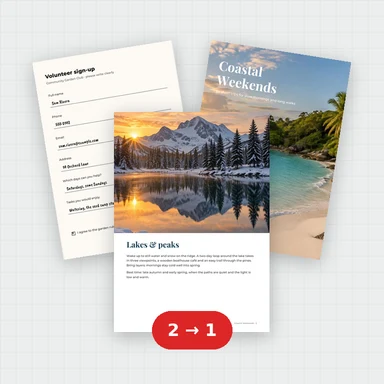 Merge PDFMerge PDF files into one, free: drag to set the order, combine any number of PDFs and download. No upload, no sign-up, no watermark, no file limits.
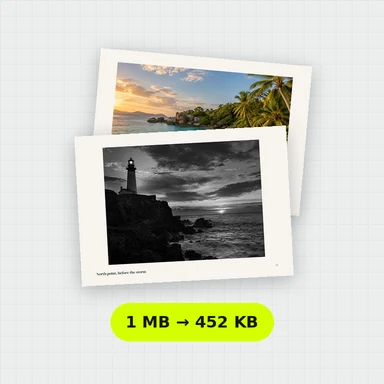 Compress PDFCompress a PDF free: shrink its pictures to reduce the file size while text stays sharp and searchable. Choose the level, see the result. No upload, no sign-up, no watermark.
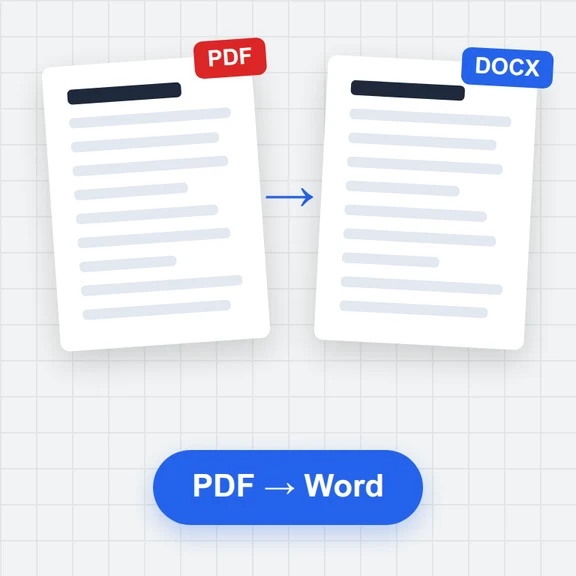 PDF to WordConvert PDF to an editable Word document (.docx) free. Keeps paragraphs, headings, lists, tables, pictures and links. Runs in your browser: no upload, no sign-up, no watermark.
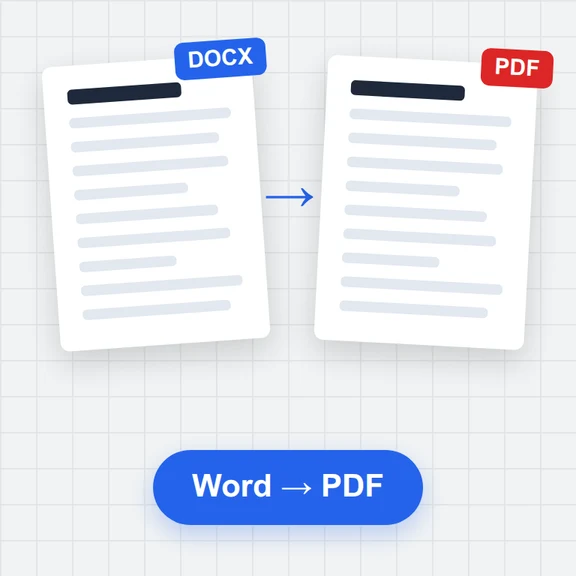 Word to PDFConvert Word documents (.docx) to PDF free. Real, selectable text, tables, pictures, headers and page numbers. Runs in your browser: no upload, no sign-up, no watermark.
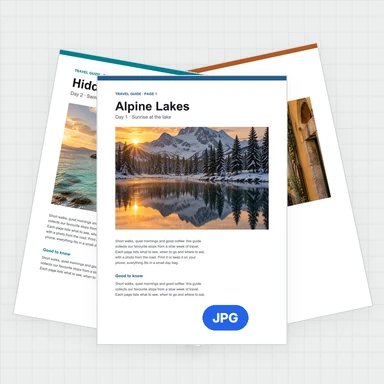 PDF to JPG ConverterConvert PDF to JPG, PNG or WebP free: pick pages, set the DPI up to 300 or more, download one image or a ZIP. Extract pictures too. No upload, no limits, no watermark.
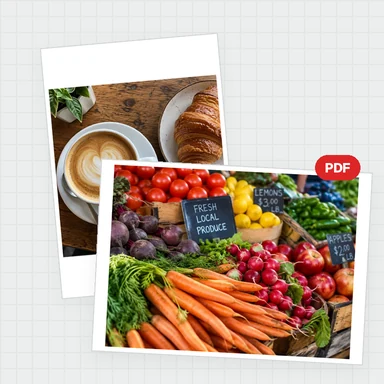 Image to PDF ConverterConvert JPG, PNG and other images to one PDF free: reorder and rotate, choose A4, Letter or image size, margins and several images per page. No upload, no watermark.