
Open your Word file
Drop a .docx file onto the page, paste it, or choose it from your device.
Turn a Word document into a PDF with real, selectable text: headings, lists, tables, pictures, headers, footers and page numbers come along. Your file is converted on your device and never uploaded.
Open Word to PDF →Drop a .docx file onto the page, paste it, or choose it from your device.
Keep the document’s page size and margins, or switch to A4 or Letter. Add comments and set the title if you like.
Check the pages, then download. The text stays real text you can select and search.
Every word is text in the PDF, in fonts that match Word’s sizes, so you can search, copy and read it aloud.
Headings, lists with their numbers, tables with borders and shading, pictures, headers, footers and page numbers.
The document is laid out and converted inside your browser. Nothing is uploaded.
Use Manlin to reflect, plan and take your next step.

Yes. Convert as many documents as you like with no account, no daily limit and no watermark.
No. The document is read and converted in your browser. The only thing downloaded is the font files the converter needs.
Yes. Text is written as real text with embedded fonts, not as a picture, so you can select, copy and search it.
Very close for most documents. Common Word fonts are replaced with open fonts of the same size (for example Calibri with Carlito), so lines break in the same places. Pages may break a little differently than in Word, and charts and SmartArt are marked with a box instead of drawn. The converter lists anything it couldn’t convert exactly.
Word documents in .docx format, including .docm and .dotx. Older .doc files, .odt and .rtf need to be saved as .docx first; the converter tells you how.
Yes. The converter works in the browser on phones and tablets as well as computers.
Yes. Keep the document’s own size, or lay it out on A4 or Letter. You can also choose narrow, normal or wide margins.
Only if you want. Turn on “Include comments” to add them, with their authors and the text they refer to, on pages at the end.
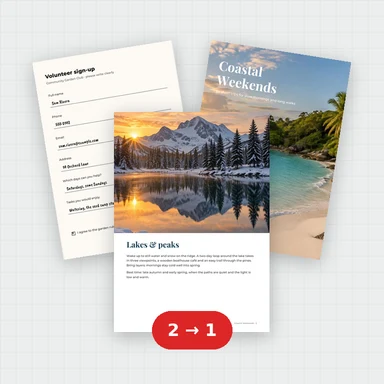 Merge PDFMerge PDF files into one, free: drag to set the order, combine any number of PDFs and download. No upload, no sign-up, no watermark, no file limits.
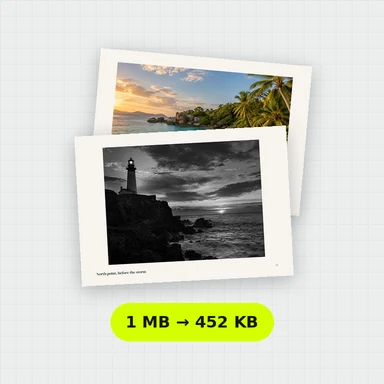 Compress PDFCompress a PDF free: shrink its pictures to reduce the file size while text stays sharp and searchable. Choose the level, see the result. No upload, no sign-up, no watermark.
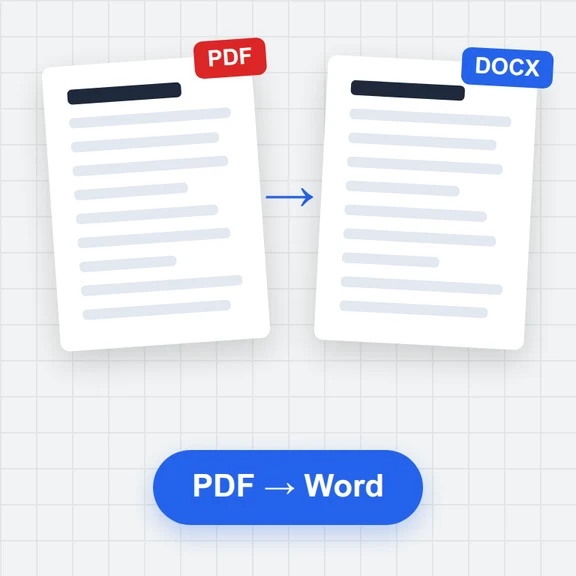 PDF to WordConvert PDF to an editable Word document (.docx) free. Keeps paragraphs, headings, lists, tables, pictures and links. Runs in your browser: no upload, no sign-up, no watermark.
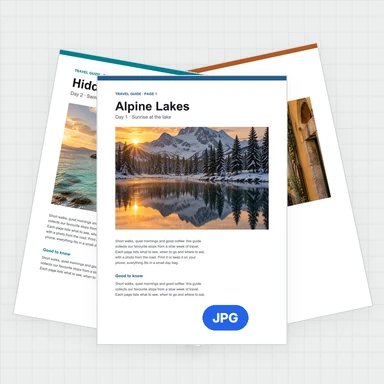 PDF to JPG ConverterConvert PDF to JPG, PNG or WebP free: pick pages, set the DPI up to 300 or more, download one image or a ZIP. Extract pictures too. No upload, no limits, no watermark.
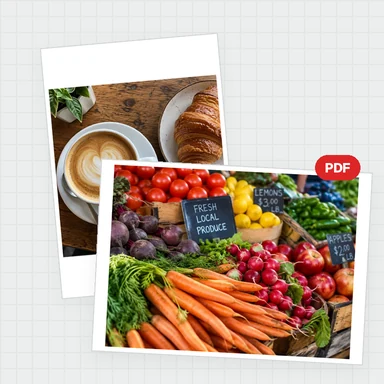 Image to PDF ConverterConvert JPG, PNG and other images to one PDF free: reorder and rotate, choose A4, Letter or image size, margins and several images per page. No upload, no watermark.
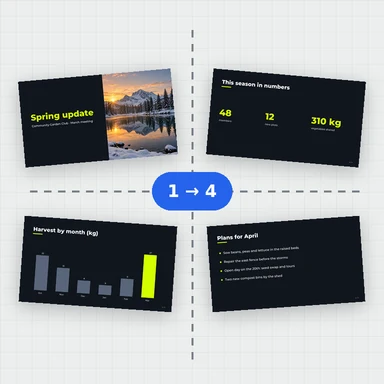 Split PDFSplit a PDF free: by page ranges, into single pages or every few pages, or extract the pages you pick. Download a PDF or a ZIP. No upload, no sign-up, no watermark.