
Add your images
Drop or choose as many images as you like. Add more at any time.
Put JPG, PNG and other images into a single PDF, in the order you choose. Rotate pages, pick the page size and margins, and keep the file small.
Open Image to PDF Converter →Drop or choose as many images as you like. Add more at any time.
Drag images into order and rotate any that are sideways. The preview shows every page.
Pick the page size, margins and file size, then download one PDF.
Use Manlin to reflect, plan and take your next step.

Yes. Combine as many images and make as many PDFs as you like, with no account and no watermark.
No. The PDF is made in your browser, so your photos and scans never leave your device.
Not with “Original quality”: JPG photos go into the PDF exactly as they are, and PNGs stay lossless. The other settings save photos as smaller JPGs, which is useful for email and upload limits.
JPG, PNG, WebP, GIF (first frame), BMP and AVIF. HEIC photos from iPhones work in Safari; in other browsers, save them as JPG first.
Drag an image to a new place, or use the arrow buttons under it. “Sort by name” puts them in file name order, which suits scans and numbered photos.
Yes. Choose 2, 4, 6 or 9 images per page for contact sheets, receipts or handouts. “Fit” shows each image whole; “Fill” fills each space and trims the edges.
Each page takes the shape of its image, with no white bands around it. Choose A4 or US Letter instead when you want to print.
Yes. The camera’s rotation is applied automatically, and you can rotate any image left or right before making the PDF.
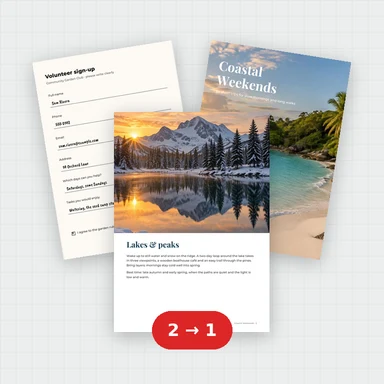 Merge PDFMerge PDF files into one, free: drag to set the order, combine any number of PDFs and download. No upload, no sign-up, no watermark, no file limits.
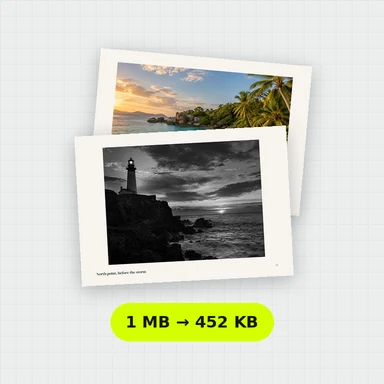 Compress PDFCompress a PDF free: shrink its pictures to reduce the file size while text stays sharp and searchable. Choose the level, see the result. No upload, no sign-up, no watermark.
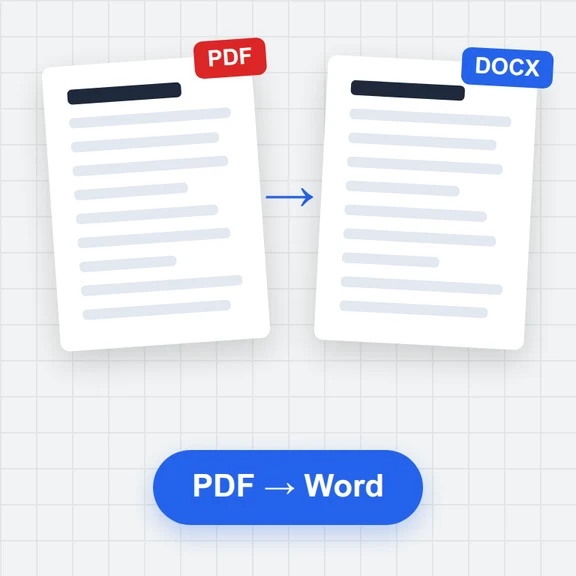 PDF to WordConvert PDF to an editable Word document (.docx) free. Keeps paragraphs, headings, lists, tables, pictures and links. Runs in your browser: no upload, no sign-up, no watermark.
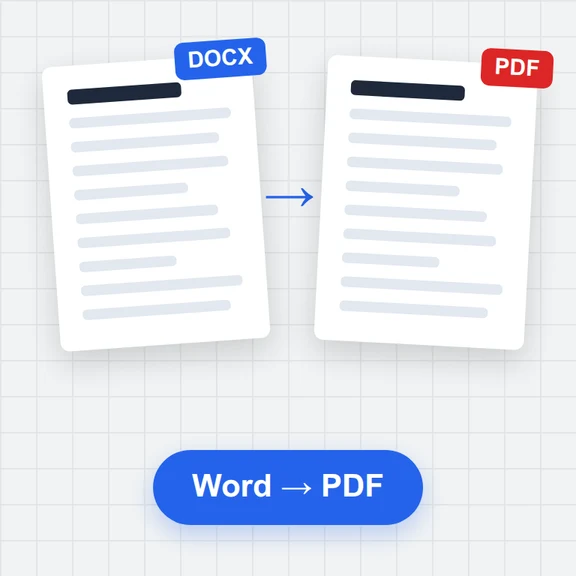 Word to PDFConvert Word documents (.docx) to PDF free. Real, selectable text, tables, pictures, headers and page numbers. Runs in your browser: no upload, no sign-up, no watermark.
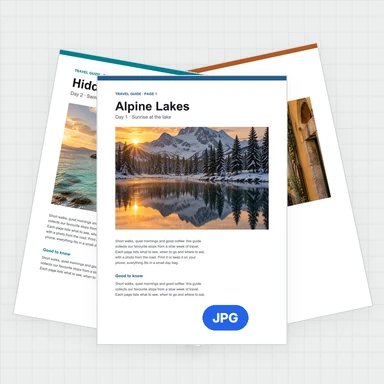 PDF to JPG ConverterConvert PDF to JPG, PNG or WebP free: pick pages, set the DPI up to 300 or more, download one image or a ZIP. Extract pictures too. No upload, no limits, no watermark.
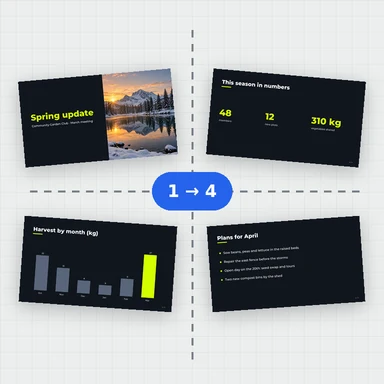 Split PDFSplit a PDF free: by page ranges, into single pages or every few pages, or extract the pages you pick. Download a PDF or a ZIP. No upload, no sign-up, no watermark.