
Open your PDF
Drop it on the page, choose it or paste it. Password-protected files ask for their password.
Open a PDF and read it with page thumbnails, the table of contents and full-text search. Zoom, rotate, read two pages side by side, switch to dark pages, present full screen or print. Large files stay fast.
Open PDF Reader →Drop it on the page, choose it or paste it. Password-protected files ask for their password.
Scroll or turn pages, jump with thumbnails or the contents, and search the whole text.
Open the same file again and it continues on the page and zoom where you left it.
Only the pages you look at are drawn, so documents with hundreds or thousands of pages open quickly and scroll smoothly.
Every match is highlighted on the page and listed with the words around it. Click a result to jump to it.
Browse the PDF's table of contents or its pages in the sidebar.
Continuous scrolling, one page at a time or two pages side by side; fit to width or page, zoom up to 500%, rotate.
Dark pages that keep pictures in their own colours, or a full inversion for scans.
Links in the PDF work, and filled-in form fields are shown as they are.
Ctrl+F (⌘F on Mac) opens the search; Enter and F3 go to the next match.
Page Up / Page Down, N and P, Home and End. In single-page view the arrow keys turn pages too.
+ and − zoom in and out, Ctrl+0 goes back to automatic zoom. On a phone, pinch or double-tap.
R rotates the view; Presentation shows one page at a time full screen, click or press the arrow keys to go on.
Use Manlin to reflect, plan and take your next step.

Yes. Read as many PDFs as you like, of any size, with no account and no limits.
No. The PDF opens in your browser and never leaves your device.
Yes. Type the password when asked; it is used only in your browser to open the file.
Yes, if the PDF has text. Matches are highlighted and listed with their page. Scanned PDFs without text can't be searched.
Yes. Open the same file again in this browser and it goes back to your page, zoom and layout.
Yes. Pinch to zoom, double-tap to zoom in, and use the sidebar for pages and contents.
Yes. Use Print in the toolbar: the pages are prepared at print quality and your browser's print dialog opens.
This reader shows PDFs as they are. To add text, sign or fill in forms, use the free PDF editor.
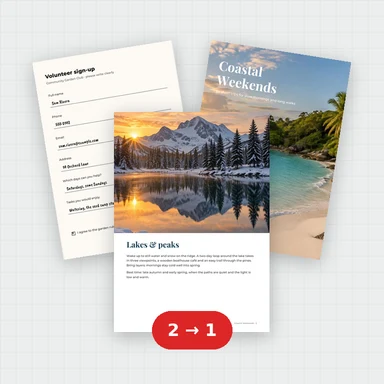 Merge PDFMerge PDF files into one, free: drag to set the order, combine any number of PDFs and download. No upload, no sign-up, no watermark, no file limits.
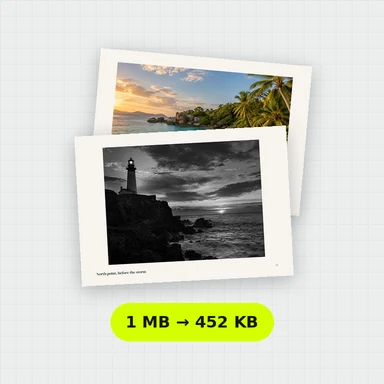 Compress PDFCompress a PDF free: shrink its pictures to reduce the file size while text stays sharp and searchable. Choose the level, see the result. No upload, no sign-up, no watermark.
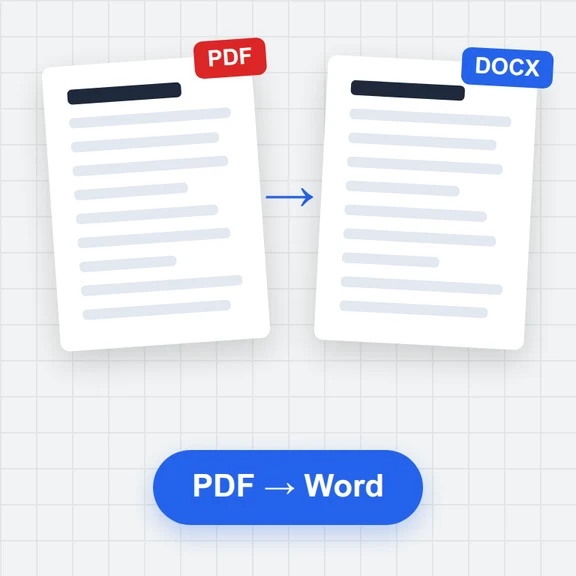 PDF to WordConvert PDF to an editable Word document (.docx) free. Keeps paragraphs, headings, lists, tables, pictures and links. Runs in your browser: no upload, no sign-up, no watermark.
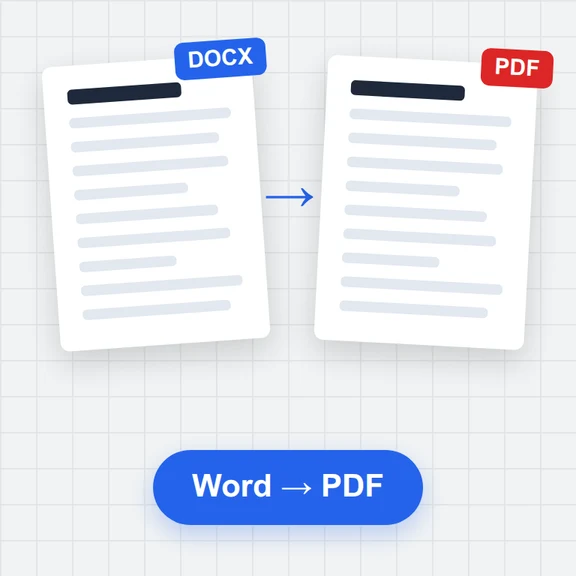 Word to PDFConvert Word documents (.docx) to PDF free. Real, selectable text, tables, pictures, headers and page numbers. Runs in your browser: no upload, no sign-up, no watermark.
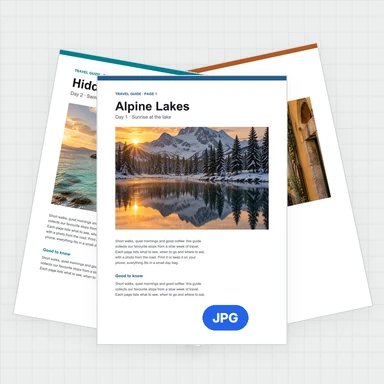 PDF to JPG ConverterConvert PDF to JPG, PNG or WebP free: pick pages, set the DPI up to 300 or more, download one image or a ZIP. Extract pictures too. No upload, no limits, no watermark.
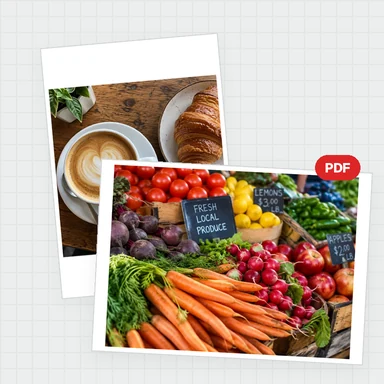 Image to PDF ConverterConvert JPG, PNG and other images to one PDF free: reorder and rotate, choose A4, Letter or image size, margins and several images per page. No upload, no watermark.