
Open your PDF
Drop a PDF or choose one. If it has a password, type it; it is checked on your device.
Add text, pictures, shapes and your signature, change existing words, highlight, fill in forms, black out what must stay private and put pages in order. Everything happens on your device, and you download a normal PDF.
Open PDF Editor →Drop a PDF or choose one. If it has a password, type it; it is checked on your device.
Pick a tool: add text or pictures, change a line, highlight, draw, sign, fill in fields, redact, or rearrange the pages in the list on the left.
Get a new PDF with your changes. Pages you didn't touch stay exactly as they were.
Type anywhere in sans, serif or monospace, bold or italic, any size and colour, with alignment, line spacing and a background. Latin, Greek and Cyrillic letters are written as real, searchable text.
Click a line of the PDF to retype it: the old words are covered with their own background colour and your text is placed at the same size and position.
Place PNG, JPG or WebP pictures, draw, type or upload a signature, add check marks, crosses and today's date. Move, resize and rotate anything.
Highlight, underline and strike through text, draw freehand, and add rectangles, ellipses, lines and arrows.
Fill in text fields, checkboxes, radio buttons and lists of fillable PDFs, then keep them fillable or flatten them into the page.
Black out names, numbers or pictures. Redacted pages are saved as images, so what was under the boxes is gone from the file, not just hidden.
Reorder by dragging, rotate, duplicate, delete, insert blank pages or pages from another PDF, and save only the pages you select.
Add page numbers, headers, footers and a single or repeated watermark to all pages or the ones you choose.
The PDF is opened and saved in your browser and never uploaded. Password-protected files are unlocked on your device.
Use Manlin to reflect, plan and take your next step.

Yes. Edit and download as many PDFs as you like, with no account, no daily limit and no watermark.
No. The PDF is opened, edited and saved in your browser. It never leaves your device.
Yes, line by line. Choose Edit existing text and click a line: the old words are covered with a patch of their background colour and become a text box you can retype, at the same size and position. The rest of the paragraph doesn't reflow, and the font is the closest standard one, so this works best for short changes such as names, dates and figures.
Choose the signature tool, then draw your signature, type your name in a handwriting style or upload a photo of it. Place it on the page and resize it. This is a picture of your signature, not a certificate-based digital signature.
Yes. If the PDF has fillable fields, click them and type, tick or choose. When you download, you can keep the fields fillable or flatten them so the answers become part of the page. For a scanned form without fields, add text and check marks on top.
Yes. Pages with redaction boxes are saved as pictures with the boxes burnt in, so the text and images under them are removed from the file. Those pages can't be searched or selected afterwards; the other pages stay as they were. Whiteout only covers things and does not remove them.
Yes, if you know its password. It is checked on your device. PDFs that only restrict editing open without one. The PDF you download has no password.
Any language written in Latin, Greek or Cyrillic letters is saved as real text you can search and copy. Text in other scripts, such as Chinese or Arabic, is saved as a picture of the text.
Yes. Use the stamp button to add page numbers (for example “Page 3 of 10”), a header, a footer or a watermark, on every page or on the pages you choose.
Use the page list on the left: drag pages into order, or select some and rotate, duplicate or delete them. You can also insert blank pages or pages from another PDF.
Select the pages in the page list (Ctrl- or Shift-click), then choose Download and Selected pages.
No. Pages keep their original text, fonts and pictures, and your additions are written into the PDF as text and vector graphics. Only pages with redactions become pictures, and only if you choose compression are pictures made smaller.
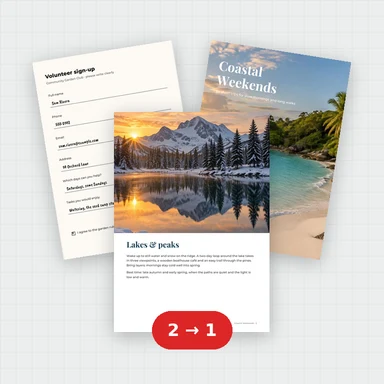 Merge PDFMerge PDF files into one, free: drag to set the order, combine any number of PDFs and download. No upload, no sign-up, no watermark, no file limits.
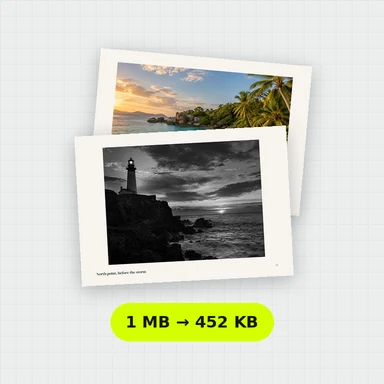 Compress PDFCompress a PDF free: shrink its pictures to reduce the file size while text stays sharp and searchable. Choose the level, see the result. No upload, no sign-up, no watermark.
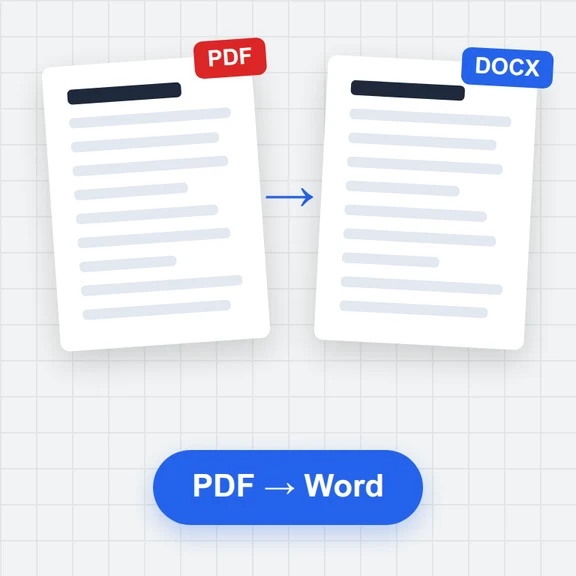 PDF to WordConvert PDF to an editable Word document (.docx) free. Keeps paragraphs, headings, lists, tables, pictures and links. Runs in your browser: no upload, no sign-up, no watermark.
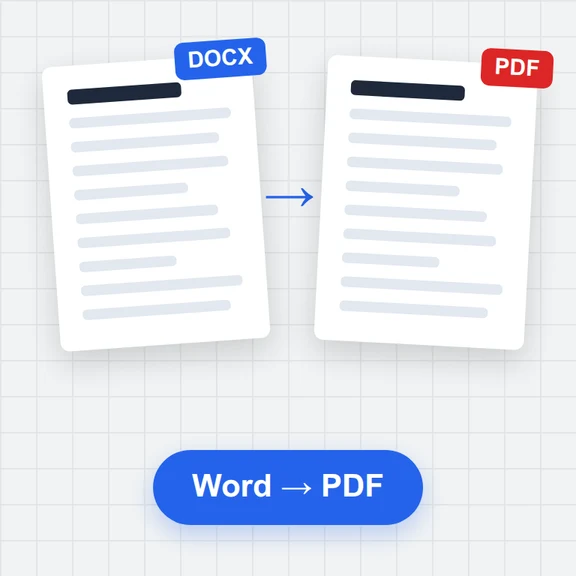 Word to PDFConvert Word documents (.docx) to PDF free. Real, selectable text, tables, pictures, headers and page numbers. Runs in your browser: no upload, no sign-up, no watermark.
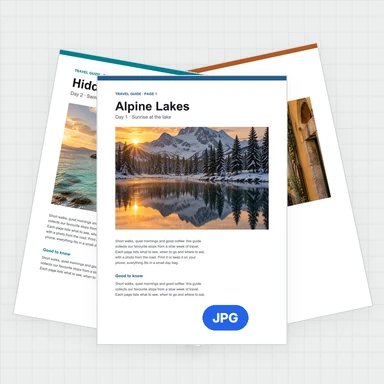 PDF to JPG ConverterConvert PDF to JPG, PNG or WebP free: pick pages, set the DPI up to 300 or more, download one image or a ZIP. Extract pictures too. No upload, no limits, no watermark.
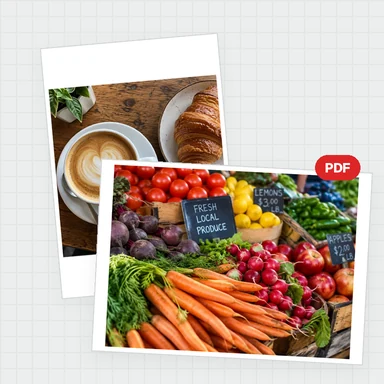 Image to PDF ConverterConvert JPG, PNG and other images to one PDF free: reorder and rotate, choose A4, Letter or image size, margins and several images per page. No upload, no watermark.