
Add images or a PDF
Drop photos, screenshots or scanned PDFs, paste an image, or take a photo with your phone.
Pull the text out of photos, screenshots and scanned PDFs: check every word against the page, fix what was misread and copy it. Download plain text, a searchable PDF or a Word document.
Open OCR →Drop photos, screenshots or scanned PDFs, paste an image, or take a photo with your phone.
Every word is outlined on the page. Words the reader is unsure of are highlighted: click one to fix it.
Copy the text, or download a searchable PDF, a Word document or plain text.
Use Manlin to reflect, plan and take your next step.

Yes. Convert as many images and pages as you like, with no account, no daily limit and no watermark.
No. Text is recognised in your browser and your images and PDFs never leave your device. Only the reading engine and the language data are downloaded, once, and then kept by your browser.
More than 50, including English, Spanish, French, German, Portuguese, Russian, Arabic, Hindi, Thai, Japanese, Korean and Chinese (simplified and traditional). Choose up to four at once for mixed documents.
Drop the PDF. Each page is read in turn, and you can download all pages as one searchable PDF, Word document or text file.
A PDF that looks exactly like your scan but has an invisible text layer, so you can search it, select text and copy it.
No. It reads printed and typed text. Handwriting usually comes out wrong.
Use a sharp, well-lit picture with the page filling the frame, choose the right language, and leave automatic clean-up on. Sideways and slightly crooked pages are straightened for you.
Yes. Click any word on the page or in the text to fix it; uncertain words are highlighted so you can review them one after another. You can also edit the whole text freely.
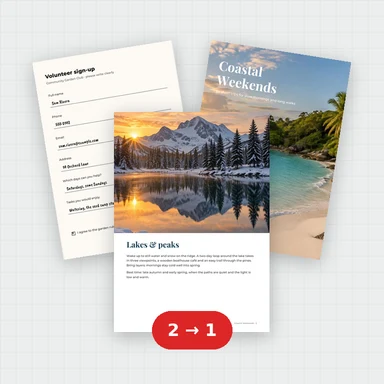 Merge PDFMerge PDF files into one, free: drag to set the order, combine any number of PDFs and download. No upload, no sign-up, no watermark, no file limits.
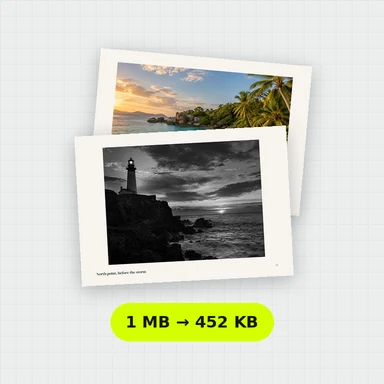 Compress PDFCompress a PDF free: shrink its pictures to reduce the file size while text stays sharp and searchable. Choose the level, see the result. No upload, no sign-up, no watermark.
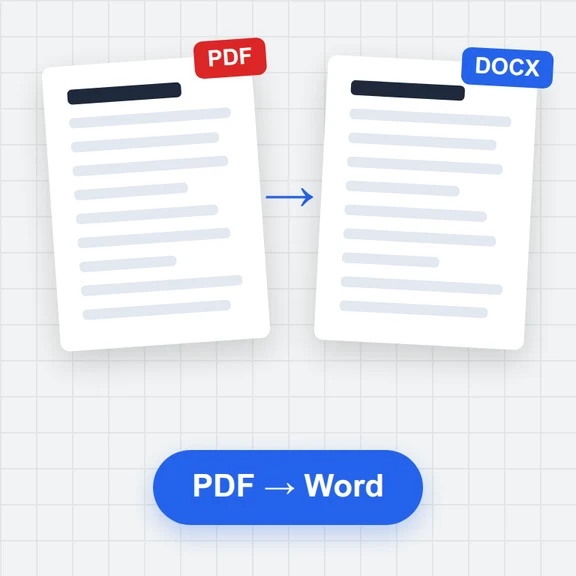 PDF to WordConvert PDF to an editable Word document (.docx) free. Keeps paragraphs, headings, lists, tables, pictures and links. Runs in your browser: no upload, no sign-up, no watermark.
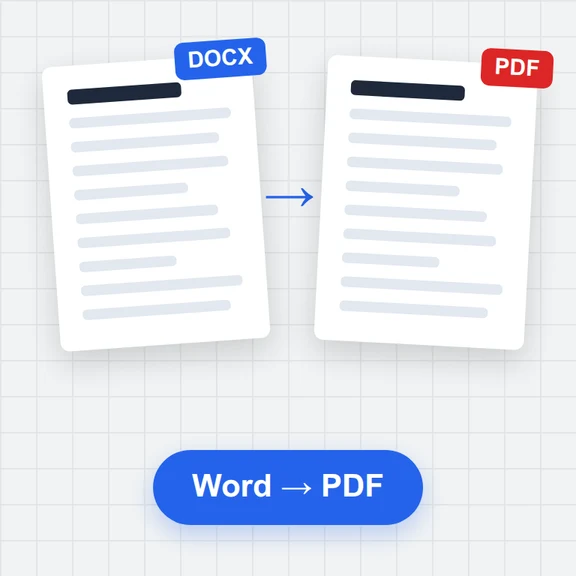 Word to PDFConvert Word documents (.docx) to PDF free. Real, selectable text, tables, pictures, headers and page numbers. Runs in your browser: no upload, no sign-up, no watermark.
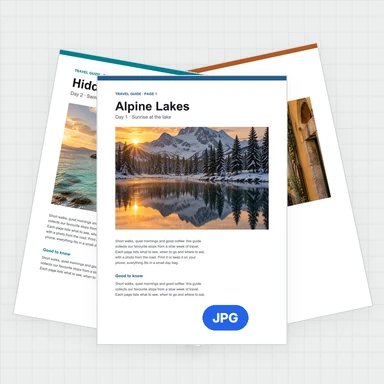 PDF to JPG ConverterConvert PDF to JPG, PNG or WebP free: pick pages, set the DPI up to 300 or more, download one image or a ZIP. Extract pictures too. No upload, no limits, no watermark.
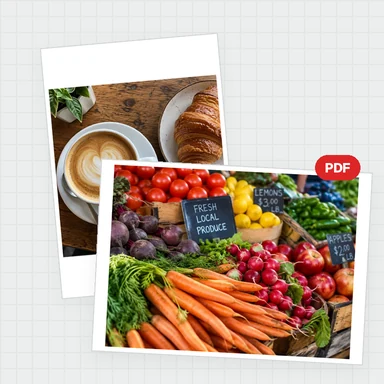 Image to PDF ConverterConvert JPG, PNG and other images to one PDF free: reorder and rotate, choose A4, Letter or image size, margins and several images per page. No upload, no watermark.