
Open your frame
Open a vertical video or image, or start with the sample frame. Files of other shapes can be filled and cropped as a feed shows them, or shown whole.
Check the vertical video safe zone of your clip or image: the checker draws the top bar, the bottom caption area and the right-hand button column of short-form vertical feeds over your 9:16 frame. Type a caption to see where it lands, mark a face or a title and get a clear answer for each, then save the overlay as a PNG and the margins as a cheat sheet.
Open Vertical Safe Zone Checker →Open a vertical video or image, or start with the sample frame. Files of other shapes can be filled and cropped as a feed shows them, or shown whole.
Choose a preset or set the margins yourself. Red areas are where app buttons and text may cover the picture; the yellow-green outline is the clear area.
Type a caption, move the subject box over a face or a title, read the check, then save the overlay PNG and the margin cheat sheet.
Most feeds stack a name, a description and a sound line over the lowest 15–25% of the frame. Place captions just above it, in the caption area.
Faces and text near the right edge end up behind the like and share buttons. Frame the subject in the middle or slightly left of centre.
Episode titles and hooks at the very top meet the status bar and the tabs. Start them below the top UI area.
Two short lines of large outlined text read better on a phone than one long line. Try the size here on a 1080×1920 frame.
When you prompt an AI video model, ask for the subject centred with headroom and space below, so captions have somewhere to go.
Subjects move. Scrub through the clip and check the frames where faces or text come closest to an edge.
Use Manlin to reflect, plan and take your next step.

It is the part of a 9:16 frame that app buttons, text and bars leave uncovered. Keep captions, titles and faces inside it and they stay visible when people watch in a feed.
With the safest preset, keep 14% (269 px) clear at the top, 25% (480 px) at the bottom, 6% (65 px) on the left and 16% (173 px) on the right where the buttons are. The cheat sheet lists every margin in pixels for 720×1280, 1080×1920 and 2160×3840.
Use “Every vertical feed (safest)” when one clip goes to several apps. “Feed with a button column” is close to the TikTok layout, “Feed with a tall top bar” to Instagram Reels and “Feed with a compact overlay” to YouTube Shorts. They are conservative guides, not official specifications, and each app updates its layout from time to time.
The bottom edge. Names, descriptions, captions, sound lines and the progress bar all sit there, so it carries the most UI. The right-hand button column comes next, then the top bar.
In the band just above the bottom UI area, inside the edges and clear of the button column. Turn on Caption area to see it, type your line in Caption test and the check tells you whether any part is covered.
Yes. Save the overlay PNG at your project size: it is transparent apart from the guides, so you can place it on a track above your edit and hide it before you export.
Yes. A 16:9 or square file can be filled and cropped the way a feed shows it, or shown whole, so you can see what a vertical crop keeps.
No. Files open in your browser, with no upload, no account and no watermark on anything you save.
Yes. Open a clip from your camera roll, drag the boxes with your finger and save the PNG or the cheat sheet.
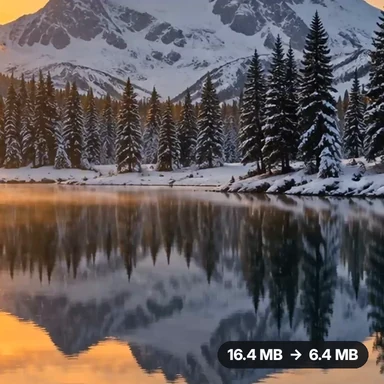 Video Compressor & EditorCompress video to a smaller size or to fit 10 MB or 25 MB, trim, crop, change speed, convert MP4 to MP3 and remove audio. Free in your browser: no upload, no watermark.
 Video ConverterConvert videos to MP4, WebM, MOV or MKV for free. Pick the quality and resolution, preview the result and download. Runs in your browser: no upload, no sign-up, no watermark.
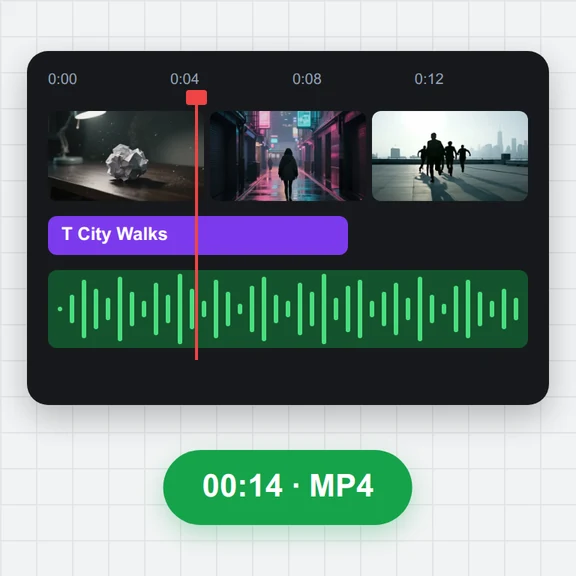 Video EditorEdit videos free in your browser: multi-track timeline, split and trim, transitions, titles, subtitles, music, speed and colour, then export MP4, WebM, GIF or MP3. No upload, no sign-up, no watermark.
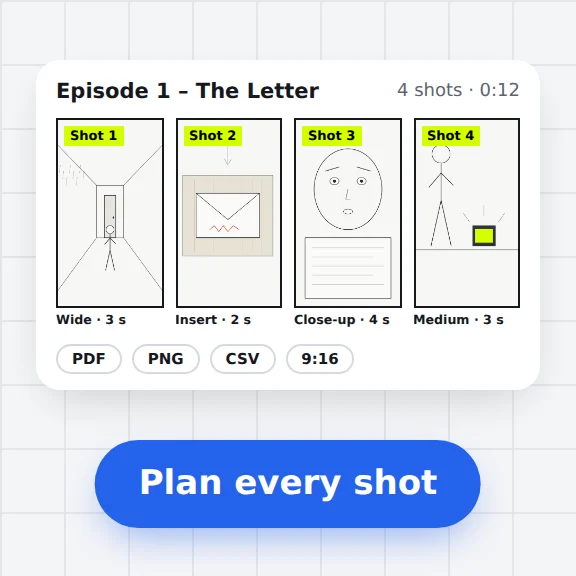 Storyboard MakerStoryboard maker for short dramas and vertical video. Add panels with pictures or sketches, shot types, camera moves, timing and dialogue, then export PDF, PNG or CSV. Free, no upload.
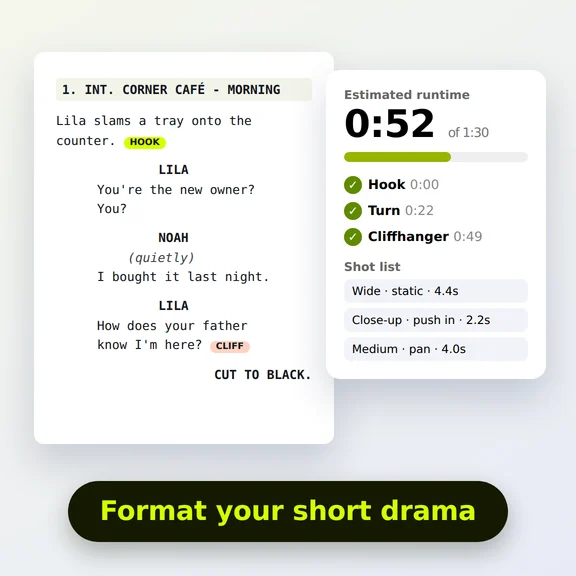 Short Drama Script FormatterShort drama script format made easy: paste an episode, get clean scene headings and dialogue, a runtime estimate, hook and cliffhanger checks and a shot list. Free.
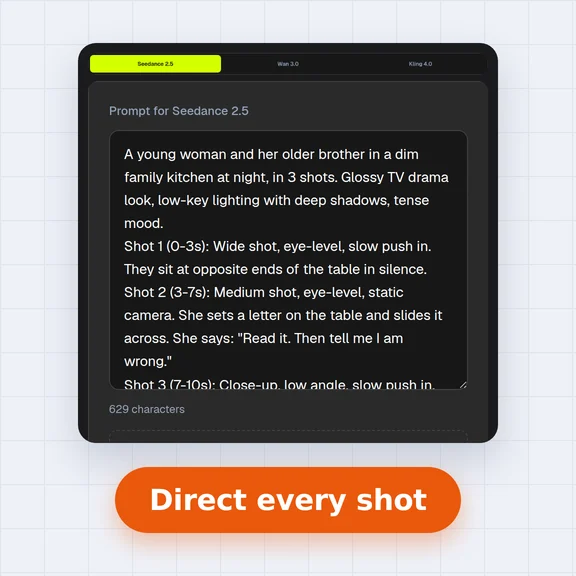 AI Video Prompt GeneratorAI video prompt generator for short dramas, free. Pick shot size, angle, camera move, lighting, mood and dialogue, build multi-shot sequences and copy the prompt.