
Pick a model and a shot
Choose Seedance 2.5, Wan 3.0 or Kling 4.0, text or image to video, and start from a preset such as a dialogue close-up or a chase.
This AI video prompt generator turns your scene into a clear shot prompt: subject, action, setting, camera, lighting, mood, dialogue and sound. Build one shot or a numbered multi-shot sequence for Seedance 2.5, Wan 3.0 or Kling 4.0, then copy it or open it in the generator.
Open AI Video Prompt Generator →Choose Seedance 2.5, Wan 3.0 or Kling 4.0, text or image to video, and start from a preset such as a dialogue close-up or a chase.
Describe who is in the shot and what happens, then set the camera, lighting, mood, a line of dialogue and the sound. Switch to multi-shot for a numbered sequence.
Fix anything the checks point out, then copy the prompt, save it for later or open it in the AI video generator.
A shot with one readable action moves smoothly. Too many actions in a few seconds lead to cuts or skipped moments.
A close-up carries emotion, a wide shot sets the place, an over-the-shoulder shot frames a conversation. Saying it keeps the framing you planned.
A slow push in builds tension, a tracking shot follows a chase, an orbit reveals a character. Pick one move per shot.
People speak about two to three words a second. Keep each line short enough for its shot, and write it in quotes with who says it.
Describe each character the same way in every shot, or attach a character image and refer to it in the prompt, so faces and outfits stay the same.
Short drama episodes are watched on phones: choose 9:16 and keep faces near the centre of the frame.
Use Manlin to reflect, plan and take your next step.

Yes. Build as many video prompts as you like with no account and no daily limit. It works in your browser and does not send what you type anywhere.
Seedance 2.5, Wan 3.0 and Kling 4.0. Each tab shows the model's length range, resolutions, aspect ratios and audio, and its prompt tips. The prompts are plain English, so they also work with other video models.
A prompt that describes several shots in one clip, numbered with their timing, for example Shot 1 (0-3s), Shot 2 (3-7s). The builder adds up the seconds and warns you when the total is longer than the model makes in one clip.
Switch to Image to video. Your image becomes the first frame, so describe what moves and how the camera moves rather than what is already in the picture.
Describe the character the same way each time, or tick the character image option and attach that image in the generator. The prompt then refers to it the way the chosen model expects.
Yes. Add who speaks and the line. The builder writes it in quotes and warns you when a line is too long for the shot. All three models generate sound with the picture.
In this browser only. Clear them at any time from the saved list.
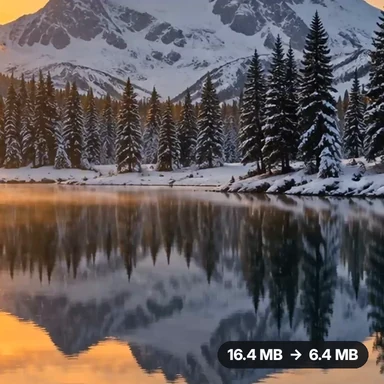 Video Compressor & EditorCompress video to a smaller size or to fit 10 MB or 25 MB, trim, crop, change speed, convert MP4 to MP3 and remove audio. Free in your browser: no upload, no watermark.
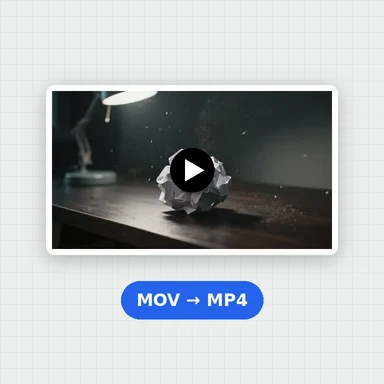 Video ConverterConvert videos to MP4, WebM, MOV or MKV for free. Pick the quality and resolution, preview the result and download. Runs in your browser: no upload, no sign-up, no watermark.
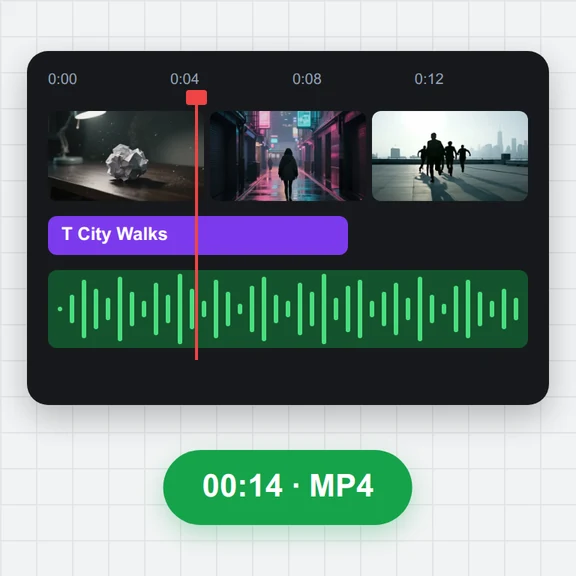 Video EditorEdit videos free in your browser: multi-track timeline, split and trim, transitions, titles, subtitles, music, speed and colour, then export MP4, WebM, GIF or MP3. No upload, no sign-up, no watermark.
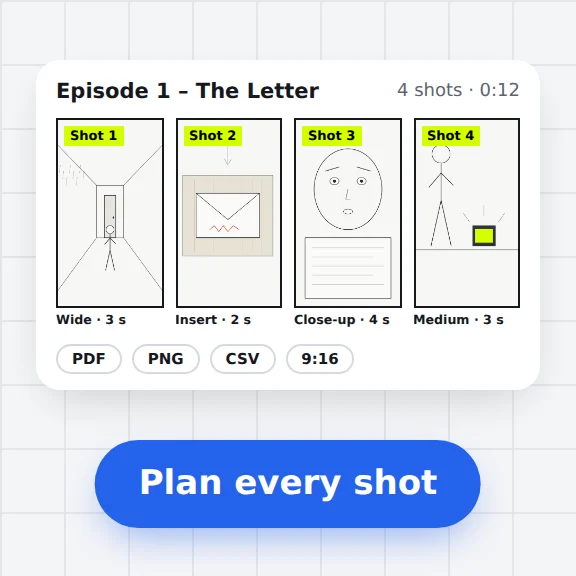 Storyboard MakerStoryboard maker for short dramas and vertical video. Add panels with pictures or sketches, shot types, camera moves, timing and dialogue, then export PDF, PNG or CSV. Free, no upload.
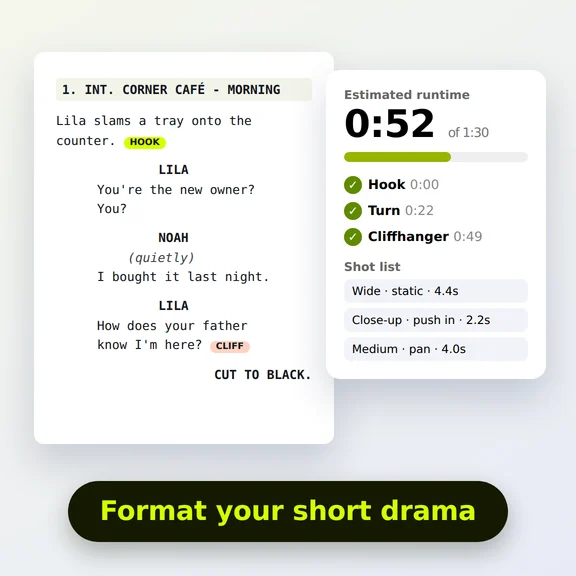 Short Drama Script FormatterShort drama script format made easy: paste an episode, get clean scene headings and dialogue, a runtime estimate, hook and cliffhanger checks and a shot list. Free.
 Video to GIF ConverterConvert video to GIF free in your browser: trim MP4, MOV or WebM clips, choose the size and frame rate, and download a looping GIF. No sign-up, no upload, no watermark.