
Add your video
Choose, drop or paste an MP4, MOV, WebM or MKV clip up to 10 minutes long. Faces are looked for right away; the first time, the small face finder downloads once.
Faces are found automatically and followed from frame to frame, so each person gets their own box. Tick who to blur and who to keep. Draw extra areas over a name tag, a street sign or a screen, set when they start and end, and export an MP4 with the original sound.
Open Blur Faces in Video →Choose, drop or paste an MP4, MOV, WebM or MKV clip up to 10 minutes long. Faces are looked for right away; the first time, the small face finder downloads once.
Untick anyone who should stay visible, draw a rectangle or ellipse over anything else and set when it starts and ends. Scrub through the preview to check every part of the clip.
Pick blur, pixelate or a solid fill, then export. Every frame is redrawn with the areas hidden and saved as an MP4 with the original sound.
Use Manlin to reflect, plan and take your next step.

Open your clip on this page. Faces are found and followed automatically; untick anyone who should stay visible, add areas for anything else, pick blur, pixelate or a solid fill and export. There is no sign-up and no watermark.
No. Everything happens in your browser: the video is read, blurred and saved on your device. The first time, the browser downloads the face finder (about 3 MB) and keeps it for next time.
Not always. Faces are looked for several times a second and followed in between, but a face seen from the side, very small, covered, blurred by motion or in the dark can be missed. Always scrub through the preview before posting and draw an area over anything that is still visible.
Yes. Each person found gets a number and a picture in the list. Untick the people who should stay visible; everyone else is hidden.
Yes. Add a rectangle or an ellipse, place it on the frame and set when it starts and ends. For something that moves, turn on keyframes and move the area at a few points of the clip.
Yes, the original sound is kept. You get an MP4 at the size and length of your clip (WebM in a browser that cannot save MP4). Clips can be up to 10 minutes; every frame is processed on your device, so longer clips take longer.
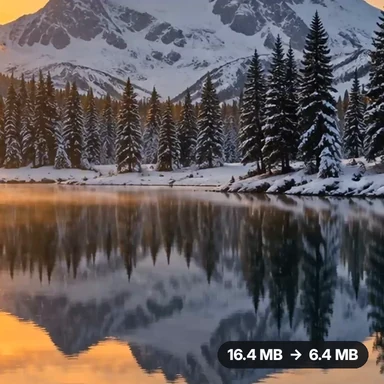 Video Compressor & EditorCompress video to a smaller size or to fit 10 MB or 25 MB, trim, crop, change speed, convert MP4 to MP3 and remove audio. Free in your browser: no upload, no watermark.
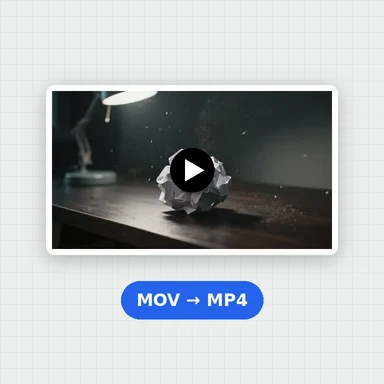 Video ConverterConvert videos to MP4, WebM, MOV or MKV for free. Pick the quality and resolution, preview the result and download. Runs in your browser: no upload, no sign-up, no watermark.
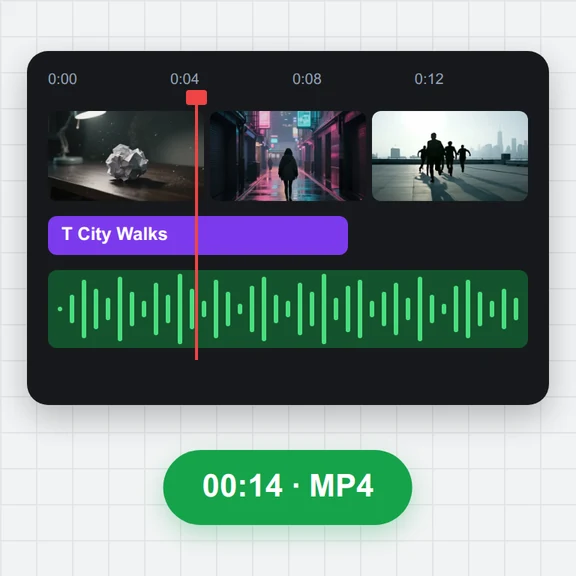 Video EditorEdit videos free in your browser: multi-track timeline, split and trim, transitions, titles, subtitles, music, speed and colour, then export MP4, WebM, GIF or MP3. No upload, no sign-up, no watermark.
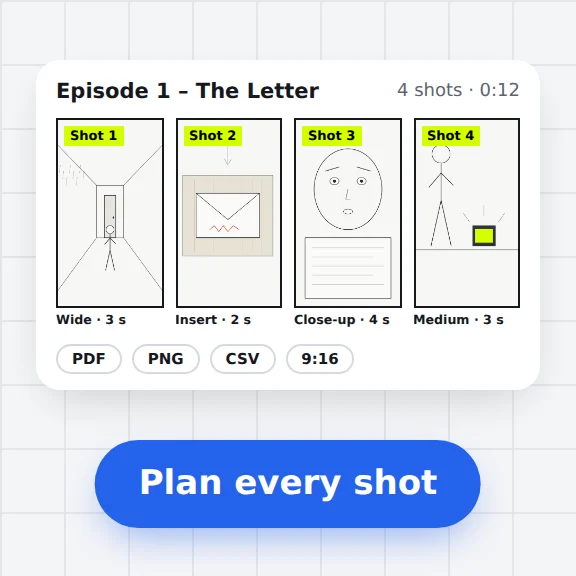 Storyboard MakerStoryboard maker for short dramas and vertical video. Add panels with pictures or sketches, shot types, camera moves, timing and dialogue, then export PDF, PNG or CSV. Free, no upload.
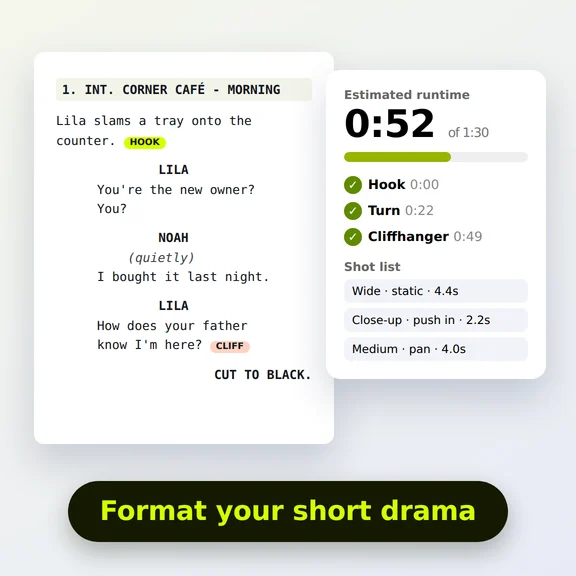 Short Drama Script FormatterShort drama script format made easy: paste an episode, get clean scene headings and dialogue, a runtime estimate, hook and cliffhanger checks and a shot list. Free.
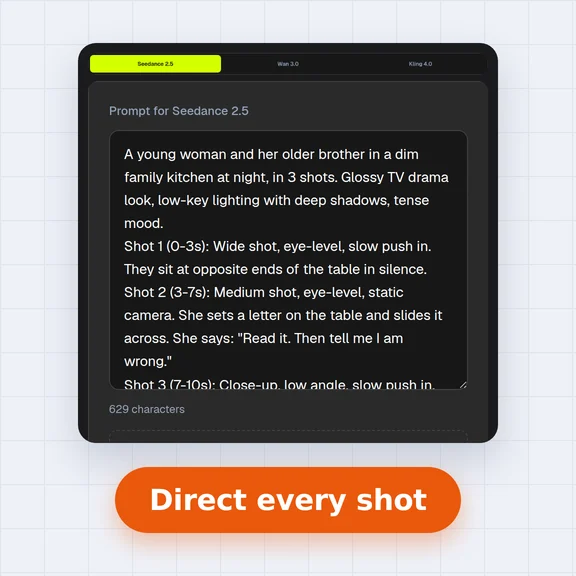 AI Video Prompt GeneratorAI video prompt generator for short dramas, free. Pick shot size, angle, camera move, lighting, mood and dialogue, build multi-shot sequences and copy the prompt.