
Add your video
Drop a video or audio file. Choose the language, or let it be detected, and press Generate subtitles.
Turn speech in any video or audio file into timed captions, in about 100 languages. Edit them, style them, then download SRT, VTT or a transcript, or burn them into the video.
Open Subtitle Generator →Drop a video or audio file. Choose the language, or let it be detected, and press Generate subtitles.
Fix any word, split or merge captions, and drag their edges on the timeline to adjust the timing.
Get an SRT or VTT file for YouTube and video editors, a text transcript, or the video with captions burned in.
Use Manlin to reflect, plan and take your next step.

Yes. There is no account, no watermark and no limit on minutes or files. Speech recognition runs on your own device, so it costs us nothing to let you use it as much as you like.
No. Your video and its sound stay on your device. The only download is the speech model, the first time you use it; your browser keeps it for next time.
About 100, including English, Spanish, Chinese, Japanese, Hindi, French, German, Portuguese and Korean. The spoken language is detected automatically, or you can choose it. You can also translate the captions into English.
Fast is a smaller model that handles clear speech well. Accurate is about three times larger and slower, and makes fewer mistakes with accents, background noise and languages other than English.
It depends on your device and the quality you choose. On a recent laptop, Fast usually takes well under the length of the video. Browsers with WebGPU run it faster. You see the progress and the time left, and can cancel at any time.
In YouTube Studio, open the video, choose Subtitles, add a language, then Upload file and pick the SRT. Most video editors, such as Premiere Pro, DaVinci Resolve and CapCut, import SRT too.
Yes. Drop an SRT or VTT file together with the video to edit the captions, change their style and burn them in, without transcribing again.
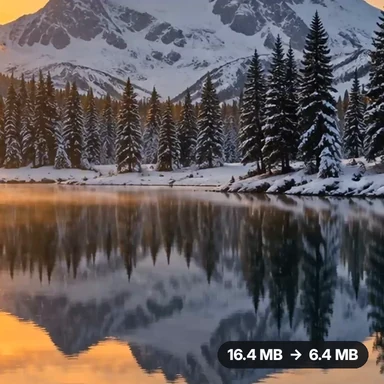 Video Compressor & EditorCompress video to a smaller size or to fit 10 MB or 25 MB, trim, crop, change speed, convert MP4 to MP3 and remove audio. Free in your browser: no upload, no watermark.
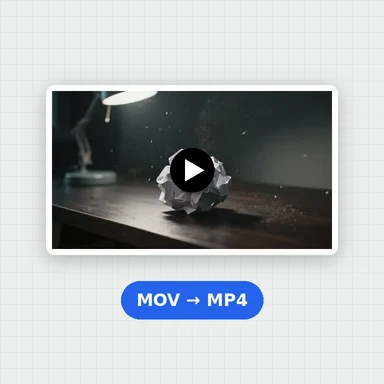 Video ConverterConvert videos to MP4, WebM, MOV or MKV for free. Pick the quality and resolution, preview the result and download. Runs in your browser: no upload, no sign-up, no watermark.
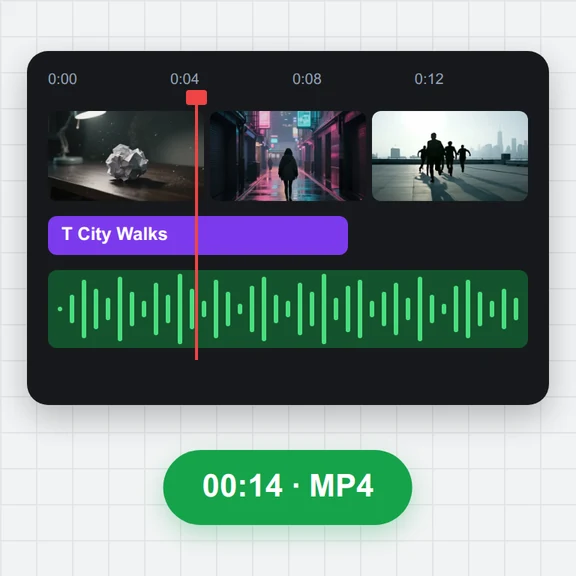 Video EditorEdit videos free in your browser: multi-track timeline, split and trim, transitions, titles, subtitles, music, speed and colour, then export MP4, WebM, GIF or MP3. No upload, no sign-up, no watermark.
 Video to GIF ConverterConvert video to GIF free in your browser: trim MP4, MOV or WebM clips, choose the size and frame rate, and download a looping GIF. No sign-up, no upload, no watermark.
 GIF MakerMake an animated GIF from photos or images free in your browser: reorder frames, set the speed, loop, size, crossfade and text, then download a GIF or MP4. No sign-up, no upload.
 Screen RecorderRecord your screen, a window or a tab with your webcam and microphone, right in the browser. No install, no sign-up, no watermark, no time limit. Save MP4 or WebM.