
Open your photo
Drop, paste or choose a photo. Large camera photos open too; the editor works on a light preview and saves from the original.
Fix light and color with sliders, curves and 31 looks, crop and straighten, remove spots, then add text, stickers and frames. Every edit can be changed or undone, and the download keeps your photo’s full resolution.
Open Photo Editor →Drop, paste or choose a photo. Large camera photos open too; the editor works on a light preview and saves from the original.
Use the tools on the left: Adjust, Looks, Curves and Color for the picture; Crop and Retouch to fix it; Text, Elements and Draw to design on top.
Pick JPG, PNG or WebP, the quality and size, and download. Save a project file to keep editing later.
Use Manlin to reflect, plan and take your next step.

Yes. Every tool and every download is free, with no account, no watermark and no limit on how many photos you edit.
No. The photo is opened, edited and saved in your browser and never leaves your device. Your last session is kept in this browser only, so you can continue after a reload.
You can open JPG, PNG, WebP, GIF (first frame), AVIF, BMP and SVG, plus HEIC in browsers that read it. Camera RAW and layered design files aren’t supported. You can save JPG, PNG or WebP, copy the result to the clipboard, or save a project file.
No. While you edit, the screen shows a light preview so sliders respond instantly, but the download is made from your original photo at full resolution, or at the size you choose.
Up to 100 megapixels. Big photos take longer to save, and phones and tablets may not be able to hold very large downloads in memory; choose a smaller size if saving fails.
Yes. Up to 200 steps can be undone and redone, and the history list lets you jump back to any step. Hold the eye button or press \ to compare with the original.
Yes. Add text with a choice of fonts, outline, shadow, background and curve, plus shapes, 43 stickers, a second picture, freehand drawing, frames and a tiled watermark. Each sits on its own layer with opacity and blend mode.
Open Retouch and choose Spot heal, then brush over the spot. For larger areas, use Heal or Clone: pick a clean source with Alt-click, then brush over what you want to cover.
No. Every tool here is classic image processing that runs in your browser. To create new images or change a photo with words, use Manlin’s image generator.
Not by default: the downloaded file has no camera or location details. Switch on Keep camera details in Export to copy them from a JPG original.
Yes. The tools move to the bottom of the screen, sliders go full width, and you can pinch to zoom and drag with two fingers.
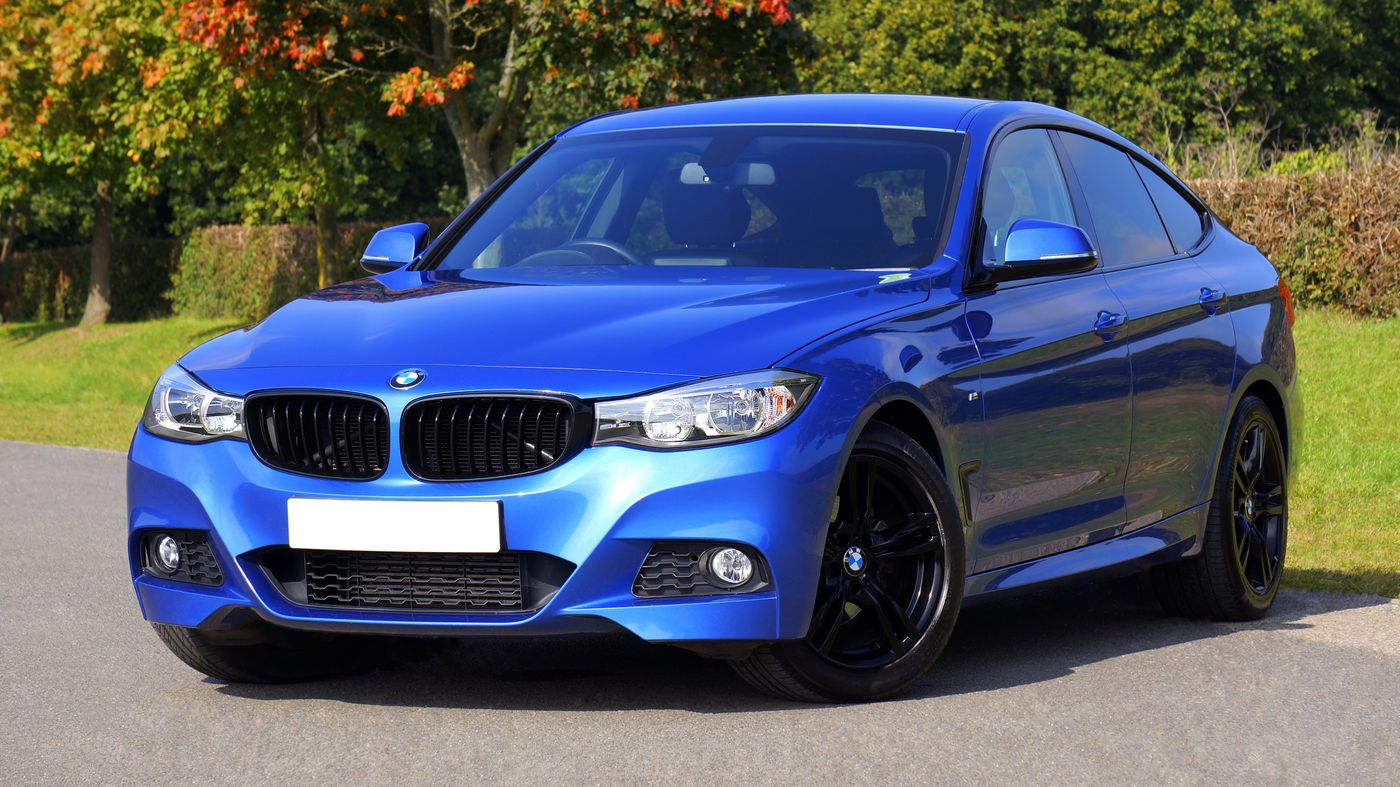 Car Poster MakerCar Poster Maker. Your photos stay in this browser. Export PNG or JPG with editable text and optional plate covers.
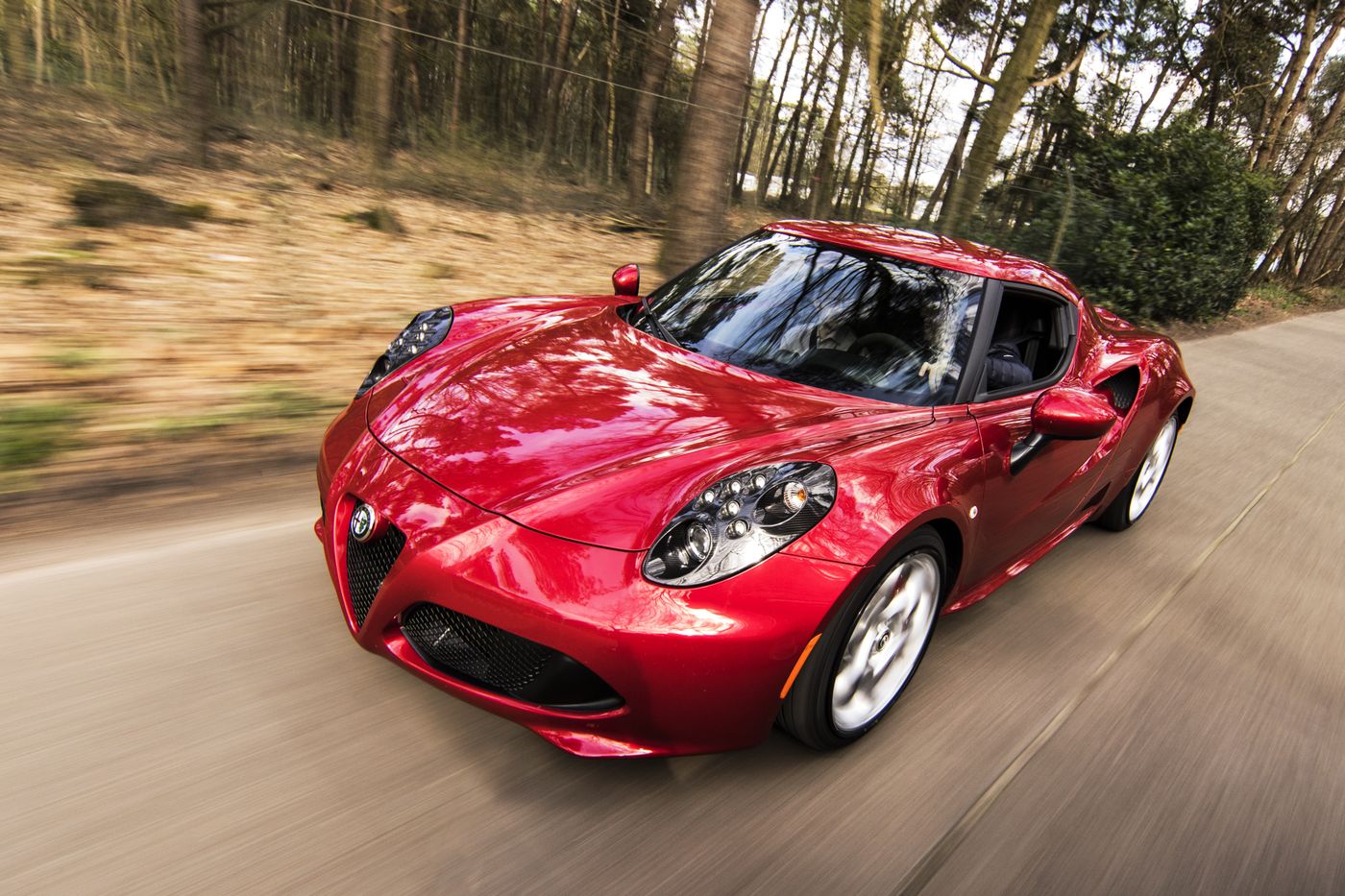 Used Car Listing Photo EditorUsed Car Listing Photo Editor. Your photos stay in this browser. Export PNG or JPG with editable text and optional plate covers.
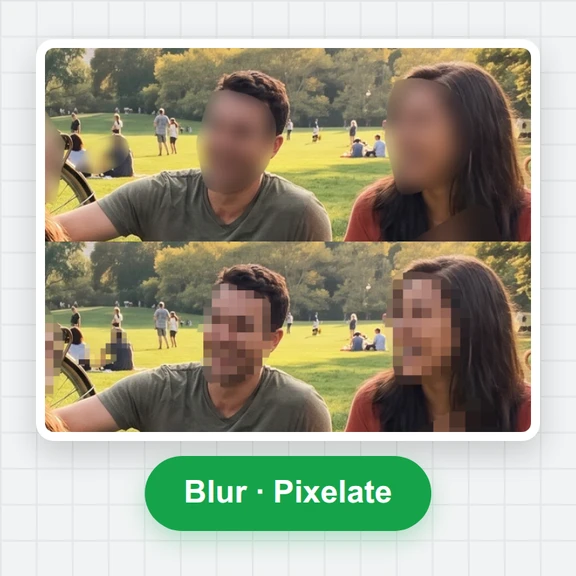 License Plate BlurHide license plates in photos with manual rectangles, solid cover, pixelation or blur. Local processing, original-size exports and batch ZIP.
 Tier List MakerCreate a tier list with images or text, drag or tap to rank, and export PNG or editable JSON. Free and local.
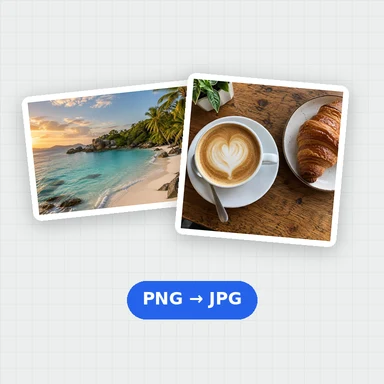 Image ConverterConvert images between JPG, PNG, WebP, GIF and BMP for free. Batch convert many images at once, set the quality and download a ZIP. No upload, no sign-up, no watermark.
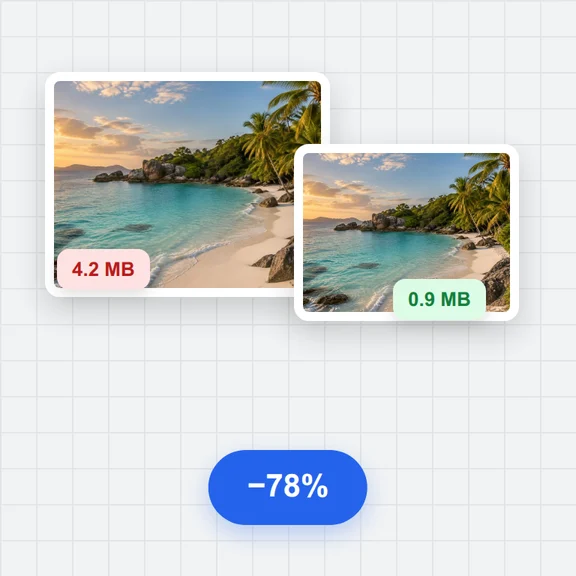 Image CompressorCompress images online for free. Reduce the file size of JPG, PNG and WebP photos in batches, choose the quality and format, and download a ZIP. No upload, no sign-up, no watermark.