
Add your images
Drop, paste or choose one or more images. Each one appears as a card with its size.
Convert one image or a whole batch to JPG, PNG, WebP, GIF or BMP. Set the quality, see each new file size, and download one file or a ZIP.
Open Image Converter →Drop, paste or choose one or more images. Each one appears as a card with its size.
Choose JPG, PNG, WebP, GIF or BMP, and set the quality for JPG or WebP.
Convert them all at once and download one file, or a ZIP when there are several.
Use Manlin to reflect, plan and take your next step.

Yes. Convert as many images as you like, as often as you like, with no account and no watermark.
No. Images are converted in your browser and never leave your device.
You can convert to JPG, PNG, WebP, GIF and BMP. You can open JPG, PNG, WebP, GIF, BMP, AVIF and SVG images, plus any other format your browser can show, such as HEIC in Safari.
Yes. Add as many images as you like; they are all converted to the same format. Several images download together as one ZIP file, and you can also download each one on its own.
For JPG and WebP, lower quality makes smaller files. 80–90% looks the same as the original for most photos. PNG, GIF and BMP are saved without quality loss beyond the format’s own limits.
PNG and WebP keep transparency. JPG, GIF and BMP can’t store it here, so transparent areas become white.
Each image can be up to 100 MB. Very large images (tens of megapixels) may fail on phones with little memory.
No. Animated images are converted from their first frame. To make an animation, use the GIF Maker.
SVG images are drawn at a usable size (at least 1024 pixels on the long side) and then saved in the format you choose.
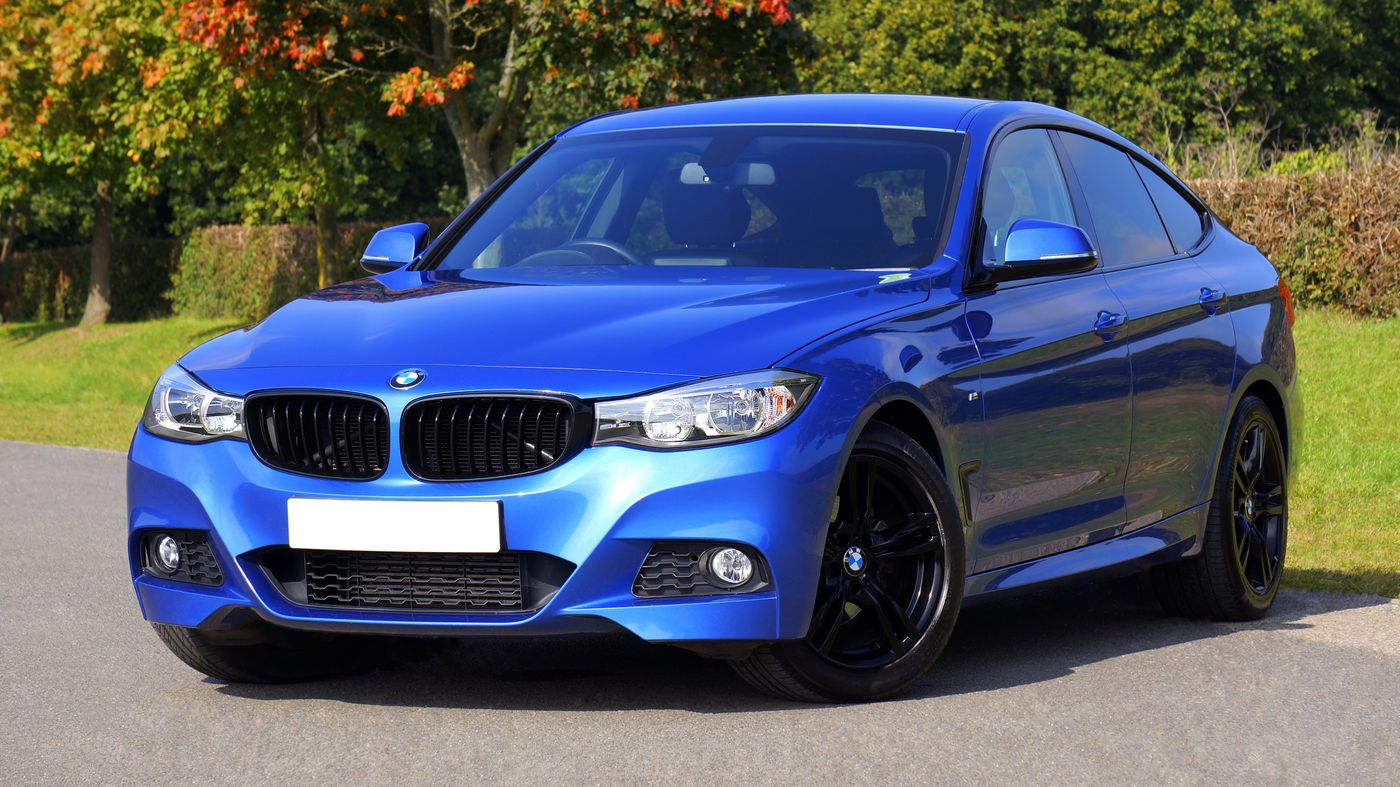 Car Poster MakerCar Poster Maker. Your photos stay in this browser. Export PNG or JPG with editable text and optional plate covers.
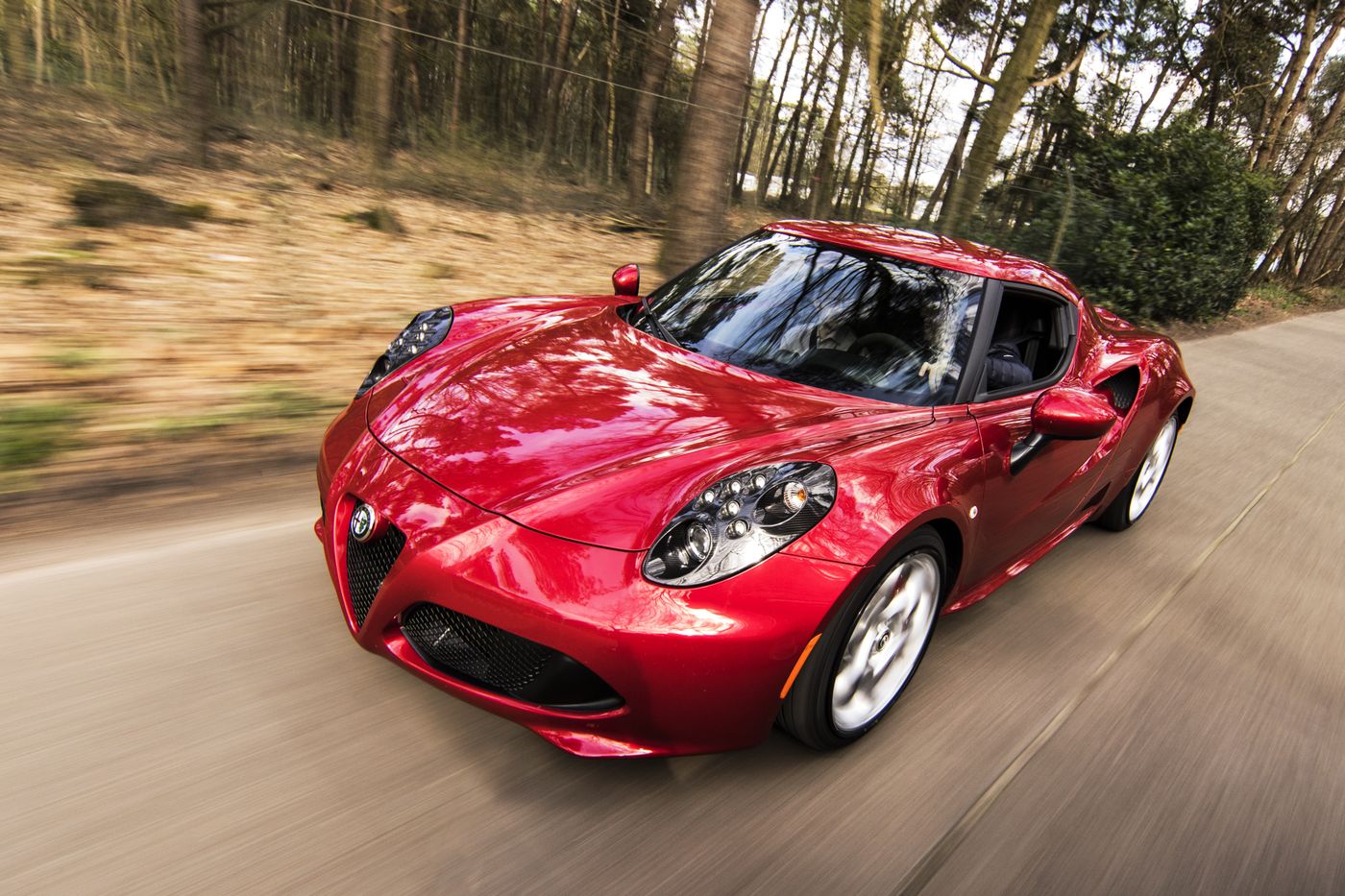 Used Car Listing Photo EditorUsed Car Listing Photo Editor. Your photos stay in this browser. Export PNG or JPG with editable text and optional plate covers.
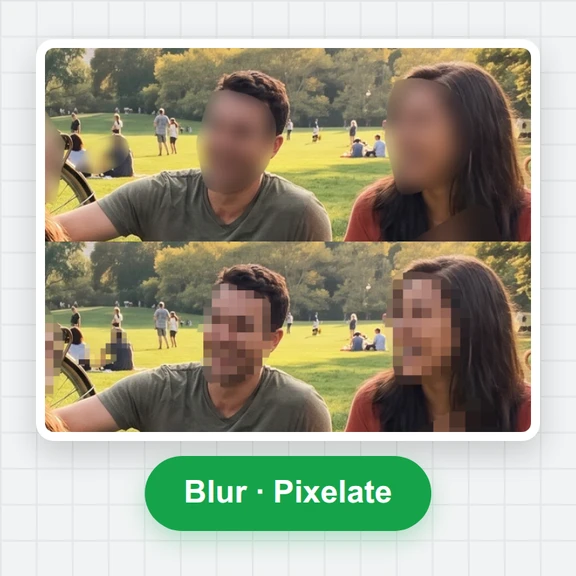 License Plate BlurHide license plates in photos with manual rectangles, solid cover, pixelation or blur. Local processing, original-size exports and batch ZIP.
 Tier List MakerCreate a tier list with images or text, drag or tap to rank, and export PNG or editable JSON. Free and local.
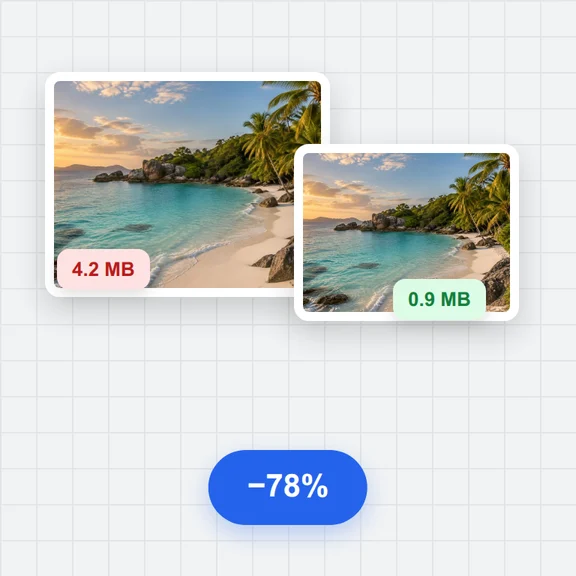 Image CompressorCompress images online for free. Reduce the file size of JPG, PNG and WebP photos in batches, choose the quality and format, and download a ZIP. No upload, no sign-up, no watermark.
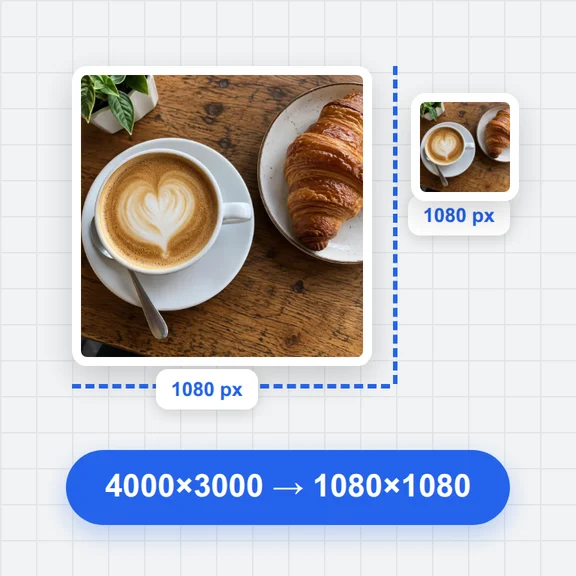 Image ResizerResize images online for free. Set an exact size in pixels, scale by percent or pick a social media size, resize many photos at once and download a ZIP. No upload, no sign-up, no watermark.