
Add your photo
Drop, paste or choose a JPG, PNG, WebP, AVIF or HEIC image, up to 50 MB.
Remove people, objects, text and blemishes from a photo: brush over them and AI fills the area to match its surroundings. It runs in your browser, so your photo is never uploaded.
Open Image Eraser →Drop, paste or choose a JPG, PNG, WebP, AVIF or HEIC image, up to 50 MB.
Paint over the object, person or text with a little margin, then press Erase. Repeat for anything else.
Hold Compare to check against the original, undo any erase you don’t like, then download PNG, JPG or WebP.
Use Manlin to reflect, plan and take your next step.

Yes. There is no sign-up, no watermark and no limit on photos or erases.
No. The AI runs in your browser, so your photo never leaves your device. Only the AI itself is downloaded, once, the first time you erase.
People in the background, power lines, signs, logos, date stamps, text, spots and other small distractions. It works best on areas that sit on a fairly even background such as sky, water, walls, grass or sand.
Brush over the whole object, its shadow and a small margin around it. For a large object, erase it in a few smaller parts. If an edge looks off, brush that bit again and erase once more.
The first time, your browser downloads the AI (about 78 MB) and keeps it for next time. Each erase then takes about 10 to 60 seconds, depending on your device.
Yes. Undo and Redo work for both your brush strokes and your erases (Ctrl+Z and Ctrl+Shift+Z, or ⌘ on a Mac). Hold Compare to see the original.
No. Only the brushed area changes, and you download the photo at its full size. Very large photos (over 16 megapixels) are scaled down first so they fit in your browser’s memory.
Yes. The AI Image Eraser in Manlin tools gives sharper fills on large and detailed photos. It runs online rather than in your browser.
Yes. Brush with your finger, use two fingers to move around a zoomed photo, and download the result to your phone.
 Car Poster MakerCar Poster Maker. Your photos stay in this browser. Export PNG or JPG with editable text and optional plate covers.
 Used Car Listing Photo EditorUsed Car Listing Photo Editor. Your photos stay in this browser. Export PNG or JPG with editable text and optional plate covers.
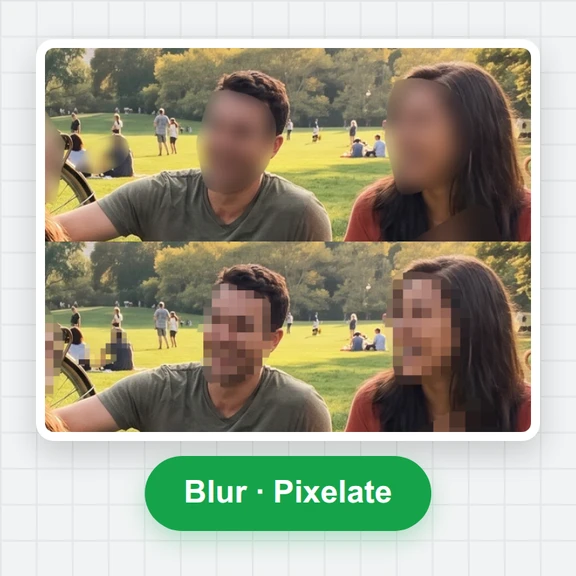 License Plate BlurHide license plates in photos with manual rectangles, solid cover, pixelation or blur. Local processing, original-size exports and batch ZIP.
 Tier List MakerCreate a tier list with images or text, drag or tap to rank, and export PNG or editable JSON. Free and local.
 Image ConverterConvert images between JPG, PNG, WebP, GIF and BMP for free. Batch convert many images at once, set the quality and download a ZIP. No upload, no sign-up, no watermark.
 Image CompressorCompress images online for free. Reduce the file size of JPG, PNG and WebP photos in batches, choose the quality and format, and download a ZIP. No upload, no sign-up, no watermark.