
Add a photo
Drop, choose or paste a portrait, selfie, scanned print or group photo.
Restore soft, low-resolution or old faces: sharper eyes, cleaner skin texture, clearer features. Every face in the photo is enhanced, and you compare before and after before you download.
Open AI Face Enhancer →Drop, choose or paste a portrait, selfie, scanned print or group photo.
Pick an upscale if you want a bigger photo, then enhance. The AI finds and restores every face.
Drag the slider to compare before and after, then download as JPG, PNG or WebP.
Use Manlin to reflect, plan and take your next step.

Yes. Enhance as many photos as you like with no account, no watermark and no daily limit.
No. The AI runs in your browser, and your photos never leave your device. The first time, your browser downloads the AI model once and keeps it for next time.
Yes. It works best on faces that are visible but soft from blur, compression, low resolution, age or scanning. Faces that are very small, turned away or hidden may not be found.
Yes. Every face it finds is restored and blended back into the photo, and the result tells you how many faces were enhanced.
The AI restores the face that is already there rather than replacing it, but it can add detail that wasn’t in the original. Compare before and after with the slider before you download.
It enlarges the whole photo 2×, 3× or 4× before the faces are restored, so the restored faces keep more detail. Only faces are restored; the rest of the photo is simply enlarged.
The AI is fastest when your browser can use the graphics card. Without it, the AI runs on the processor and can take up to a minute per face. The first run is also slower while the AI model downloads.
Photos up to 30 MB. Results can be up to about 16 megapixels (4096 × 4096); very large photos are processed at a smaller size, and bigger upscales are turned off when they would go over it.
 Car Poster MakerCar Poster Maker. Your photos stay in this browser. Export PNG or JPG with editable text and optional plate covers.
 Used Car Listing Photo EditorUsed Car Listing Photo Editor. Your photos stay in this browser. Export PNG or JPG with editable text and optional plate covers.
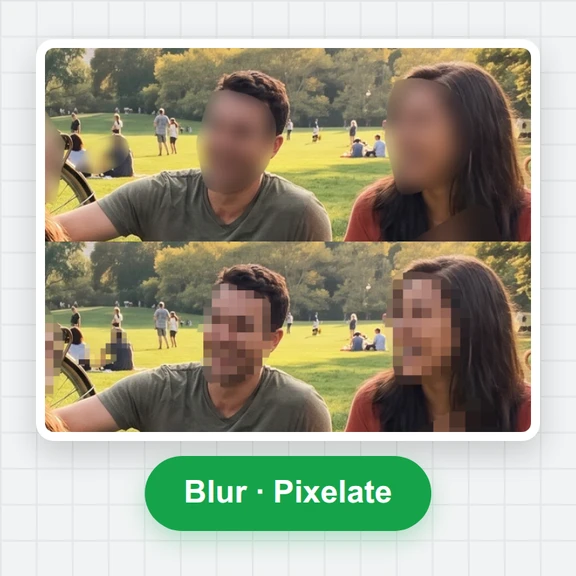 License Plate BlurHide license plates in photos with manual rectangles, solid cover, pixelation or blur. Local processing, original-size exports and batch ZIP.
 Tier List MakerCreate a tier list with images or text, drag or tap to rank, and export PNG or editable JSON. Free and local.
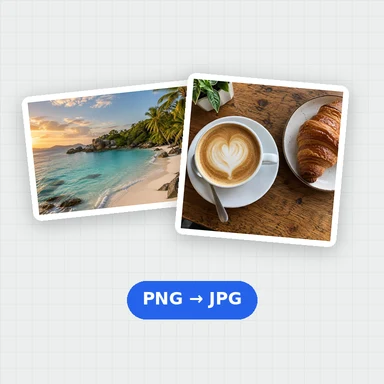 Image ConverterConvert images between JPG, PNG, WebP, GIF and BMP for free. Batch convert many images at once, set the quality and download a ZIP. No upload, no sign-up, no watermark.
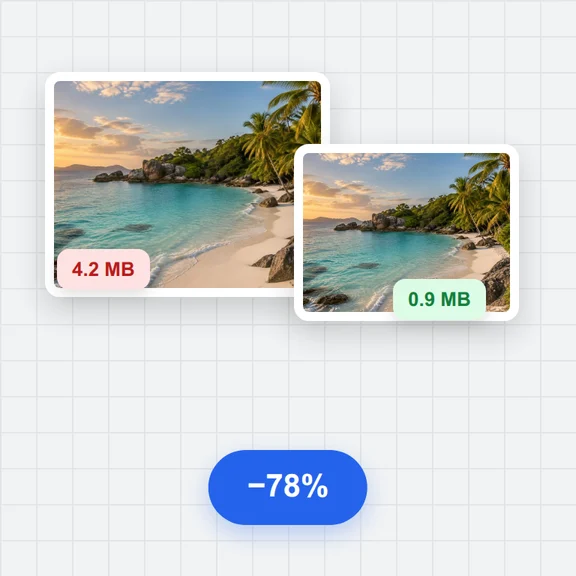 Image CompressorCompress images online for free. Reduce the file size of JPG, PNG and WebP photos in batches, choose the quality and format, and download a ZIP. No upload, no sign-up, no watermark.