
Add your photos
Choose, drop or paste one photo or a whole batch. Faces are found automatically in a few seconds; the first time, the small face finder downloads once.
Every face is found automatically, from close-ups to crowds of 60, and hidden with blur, pixelate, a solid fill or frosted glass. Tap a face to keep that person visible, draw extra areas by hand, and save full-size photos one by one or as a ZIP.
Open Face Blur →Choose, drop or paste one photo or a whole batch. Faces are found automatically in a few seconds; the first time, the small face finder downloads once.
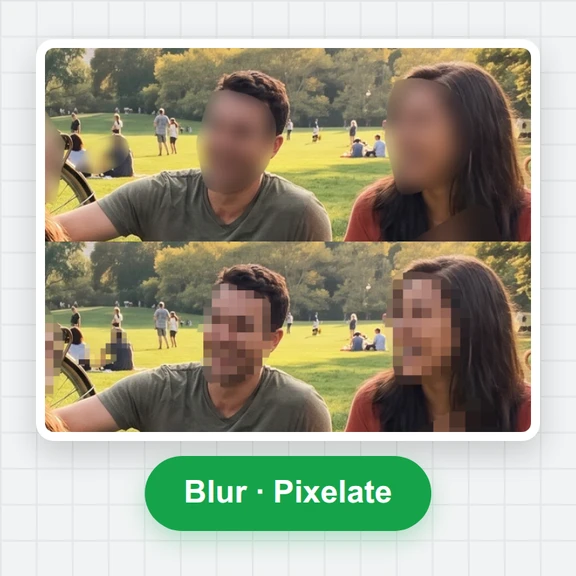
Blur, pixelate, solid or frosted, with strength, padding and shape. Tap any face to keep that person visible, or draw an area over anything else.
Download the full-size photo as JPG, PNG or WebP, or every photo in one ZIP.
Use Manlin to reflect, plan and take your next step.

Open or drop your photo and every face is found and blurred automatically. Pick blur, pixelate, solid or frosted, set the strength, then download the full-size photo. It's free and takes seconds.
Yes. Blur faces in as many photos as you like for free, with no sign-up, no watermark and no limit.
No. Your photos stay in your browser and are processed on your device. Only the small face finder downloads, once, and your browser keeps it for next time.
No. The blur replaces the face's pixels in the saved file with a few averaged colours, so the original detail is gone, not hidden under a layer. Pixelate and solid fill work the same way.
Yes. Tap a face or its number to keep that person visible. Blur all, Blur none and Invert switch every face at once.
Yes. The photo is searched in fine sections so small faces in the background are found too, up to 60 per photo. You can draw extra areas over anything else.
Yes. Add a whole batch, choose the style once, give single photos their own settings if needed, and download everything as a ZIP.
Yes. Saved photos carry no EXIF or GPS data, so the place and camera details are not shared along with the photo.
 Car Poster MakerCar Poster Maker. Your photos stay in this browser. Export PNG or JPG with editable text and optional plate covers.
 Used Car Listing Photo EditorUsed Car Listing Photo Editor. Your photos stay in this browser. Export PNG or JPG with editable text and optional plate covers.
 License Plate BlurHide license plates in photos with manual rectangles, solid cover, pixelation or blur. Local processing, original-size exports and batch ZIP.
 Tier List MakerCreate a tier list with images or text, drag or tap to rank, and export PNG or editable JSON. Free and local.
 Image ConverterConvert images between JPG, PNG, WebP, GIF and BMP for free. Batch convert many images at once, set the quality and download a ZIP. No upload, no sign-up, no watermark.
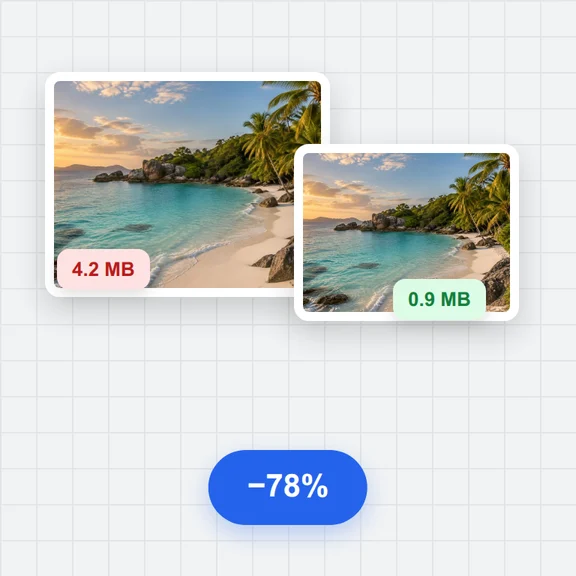 Image CompressorCompress images online for free. Reduce the file size of JPG, PNG and WebP photos in batches, choose the quality and format, and download a ZIP. No upload, no sign-up, no watermark.