
Add your photos
Drop, paste or choose one or more JPG, PNG or WebP photos. Each one shows what it contains.
See what a photo reveals: the camera, the date, the exact place it was taken and more. Remove it all in one click without changing the picture, then download one file or a ZIP.
Open EXIF Remover →Drop, paste or choose one or more JPG, PNG or WebP photos. Each one shows what it contains.
Select a photo to see its camera, date, location and other details. Photos with a GPS location are marked.
Remove the metadata and download the clean photo, or a ZIP when there are several. The list shows what is left.
Use Manlin to reflect, plan and take your next step.

EXIF is information a camera or phone saves inside a photo: the device model, settings, date and time, and often the GPS location. Editing programs add more, such as the software used and the author.
Yes. Clean as many photos as you like with no account, no watermark and no limits.
No. Photos are read and cleaned in your browser and never leave your device.
No. The picture is not decoded or re-encoded. The extra data is cut out of the file and the pixels are copied exactly, so quality and sharpness stay the same.
Yes. GPS coordinates, altitude and direction are removed. Photos that have a location are marked in the list, and the cleaned list shows that none is left.
EXIF details, GPS data, XMP and IPTC information, comments, text notes, embedded thumbnails and other attached data. In PNG files it also removes text chunks and the last-modified time.
The picture itself and its colour profile, so colours look the same. By default it also keeps the single rotation flag, so photos that were taken in portrait do not turn sideways.
Phones often store a portrait photo sideways and add a flag that tells apps to turn it. Without the flag the photo opens sideways. The flag holds no personal details, and you can switch it off if you prefer.
JPG, PNG and WebP. For other formats such as HEIC or AVIF, convert them to JPG first with the Image Converter.
Yes. Add as many photos as you like and download them together as one ZIP file, or download each photo on its own.
 Car Poster MakerCar Poster Maker. Your photos stay in this browser. Export PNG or JPG with editable text and optional plate covers.
 Used Car Listing Photo EditorUsed Car Listing Photo Editor. Your photos stay in this browser. Export PNG or JPG with editable text and optional plate covers.
 License Plate BlurHide license plates in photos with manual rectangles, solid cover, pixelation or blur. Local processing, original-size exports and batch ZIP.
 Tier List MakerCreate a tier list with images or text, drag or tap to rank, and export PNG or editable JSON. Free and local.
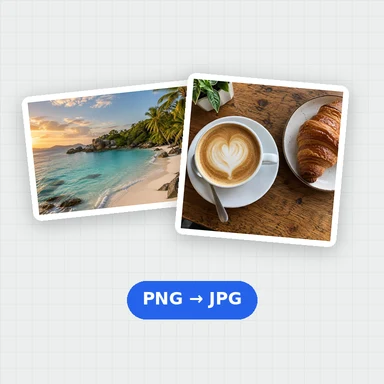 Image ConverterConvert images between JPG, PNG, WebP, GIF and BMP for free. Batch convert many images at once, set the quality and download a ZIP. No upload, no sign-up, no watermark.
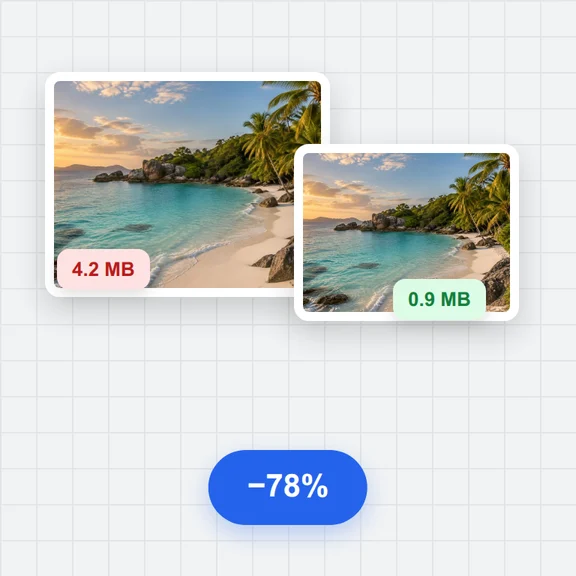 Image CompressorCompress images online for free. Reduce the file size of JPG, PNG and WebP photos in batches, choose the quality and format, and download a ZIP. No upload, no sign-up, no watermark.