
Describe your idea
Type the subject, what it does and where, or start from a preset such as product photo, portrait or storyboard shot.
Describe your idea, choose a style, lighting, camera and motion, and get a polished prompt as you go. Copy it, or create the image or video with it in one click.
Open AI Prompt Generator →Type the subject, what it does and where, or start from a preset such as product photo, portrait or storyboard shot.
Pick a style, lighting, mood, colors and framing. For video, add a camera move, pace, length and sound.
Choose the model you write for, check the score, then copy the prompt or open it in the AI generator.
Use Manlin to reflect, plan and take your next step.

Yes. Build as many image and video prompts as you like, with no account and no daily limit.
Any text-to-image or text-to-video model. Choose the model you write for and the builder adds matching tips and formatting, such as bracket camera commands for models that read them.
Start with a clear subject, add the setting, then a style, lighting and framing. The checklist shows what is covered and what to add next.
Describe who or what moves, how it moves and where, then a camera move such as a slow push-in, the pace, the length and the sound you want to hear.
It fills the builder with a fresh idea: a subject, a setting and a matching mix of style, light, camera and colors. Press it again for another one, then adjust anything you like.
Yes. The prompt box is editable. Your edits stay until you change an option; Back to builder brings the generated version back.
In your own browser. Prompts you copy, save or send to a generator appear under Saved prompts, and you can remove them one by one or all at once.
Yes. One click opens the Manlin image or video generator with your prompt filled in, and with the model you picked selected.
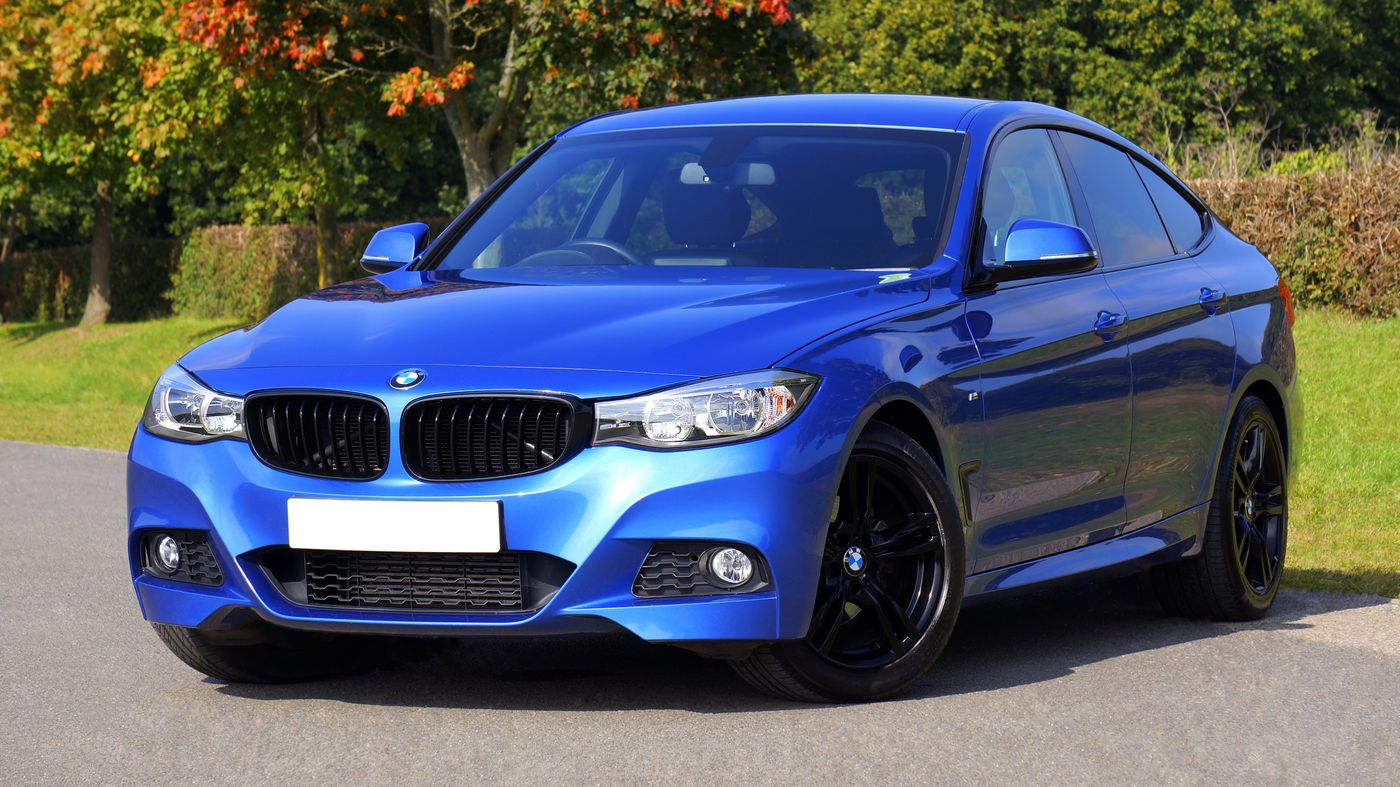 Car Poster MakerCar Poster Maker. Your photos stay in this browser. Export PNG or JPG with editable text and optional plate covers.
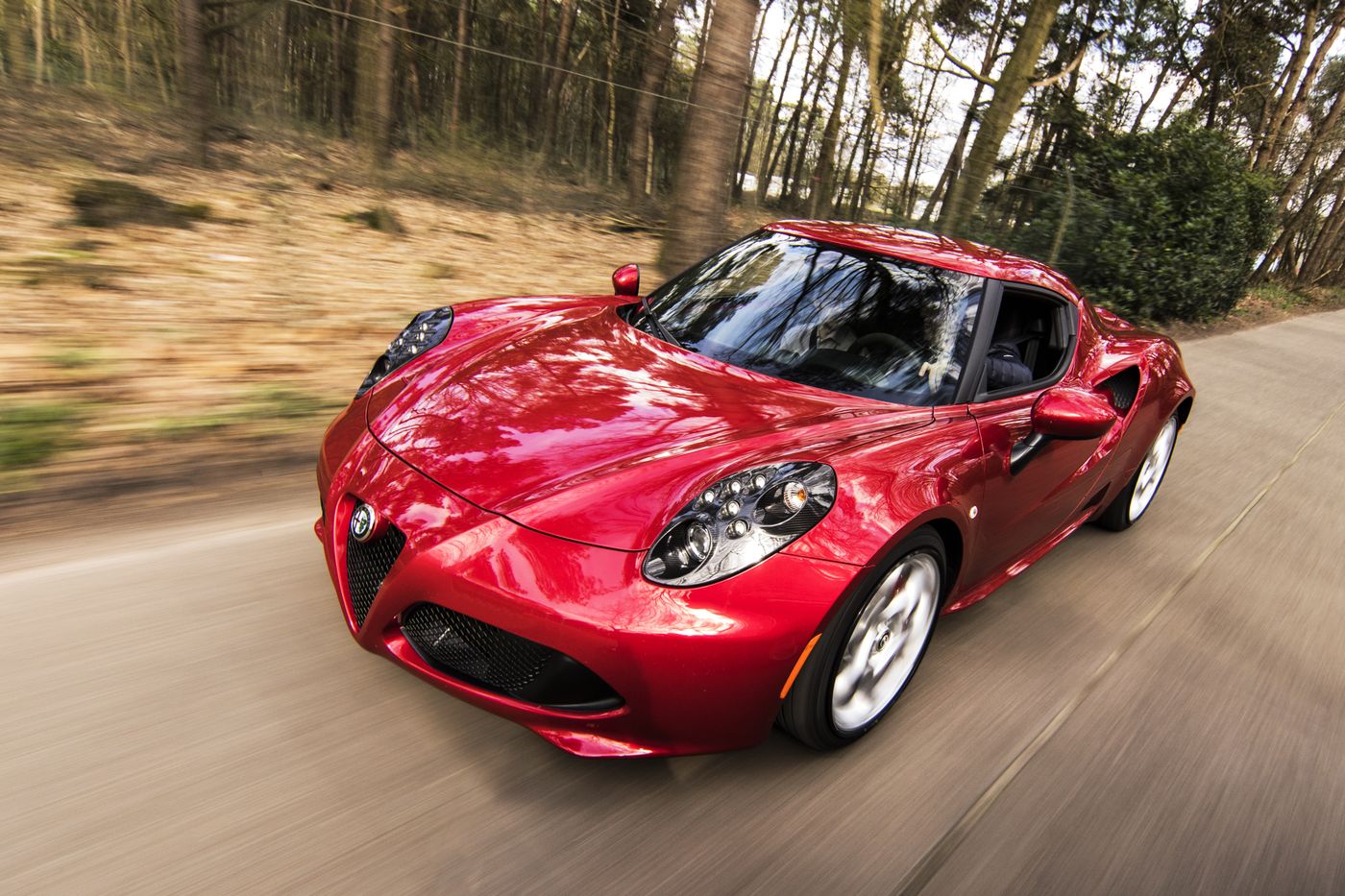 Used Car Listing Photo EditorUsed Car Listing Photo Editor. Your photos stay in this browser. Export PNG or JPG with editable text and optional plate covers.
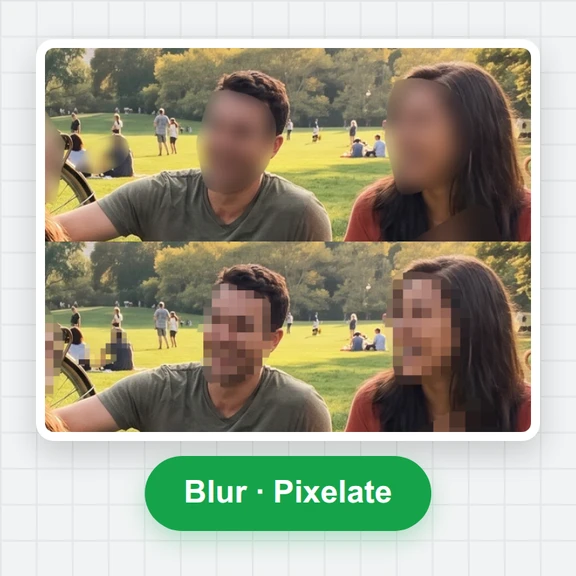 License Plate BlurHide license plates in photos with manual rectangles, solid cover, pixelation or blur. Local processing, original-size exports and batch ZIP.
 Tier List MakerCreate a tier list with images or text, drag or tap to rank, and export PNG or editable JSON. Free and local.
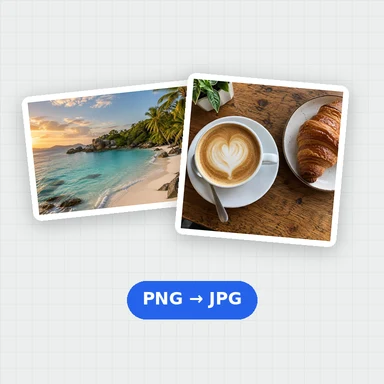 Image ConverterConvert images between JPG, PNG, WebP, GIF and BMP for free. Batch convert many images at once, set the quality and download a ZIP. No upload, no sign-up, no watermark.
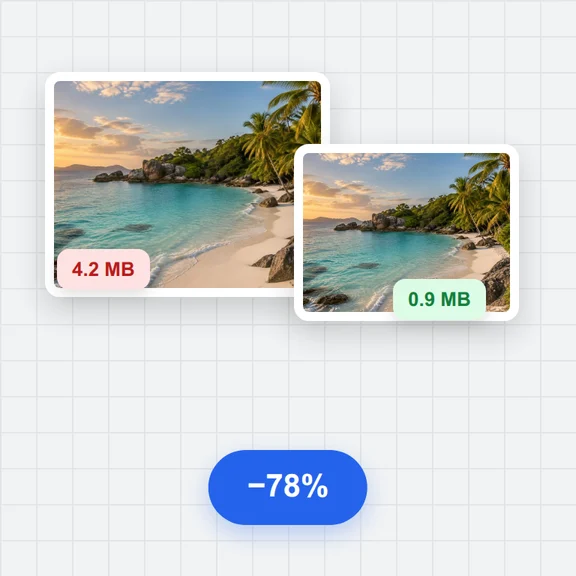 Image CompressorCompress images online for free. Reduce the file size of JPG, PNG and WebP photos in batches, choose the quality and format, and download a ZIP. No upload, no sign-up, no watermark.