
Clean the screen
Wipe off dust first: a speck can look just like a stuck pixel. Then set the brightness to your usual level.
Fill your screen with solid colours to find dead or stuck pixels and light bleeding from the edges, then check gradients, gamma, black level, text sharpness and motion blur. The page also shows your real resolution, pixel ratio, colour depth and refresh rate.
Open Screen Test →Wipe off dust first: a speck can look just like a stuck pixel. Then set the brightness to your usual level.
Click a colour. It fills the screen; click or press → to step through black, white, red, green, blue and more.
Scan the screen section by section. Note any dot that doesn’t match, then try the patterns for gradients, gamma and motion.
Use Manlin to reflect, plan and take your next step.

Clean the screen, click Black, then step through the colours with a click or the → key. Look closely at each part of the screen. A pixel that stays black on bright colours is dead; one that stays lit in a single colour on black is stuck.
A dead pixel gets no power and stays black. A stuck pixel has one or more of its red, green or blue parts permanently on, so it shows as a coloured or white dot. Stuck pixels can sometimes recover; dead pixels can’t be fixed by software.
Sometimes. Rapidly changing colours over a stuck pixel for several minutes can free it, especially if it’s new. It doesn’t work on dead pixels and may need several runs. Read the photosensitivity warning first and don’t watch the flashing.
Darken the room, set brightness to your usual level, and open the black test. Light glowing along the edges or from the corners is backlight bleed. Take a photo with your phone at normal exposure if you need to show it to a seller.
It is measured from how often the browser draws a frame, which normally matches your display’s refresh rate. A busy computer, power saving, or a browser that limits frame rate can show a lower number. If it shows 60 Hz on a faster monitor, check the refresh rate in your system display settings.
Systems scale the desktop on high-density screens. The page multiplies the scaled size by the pixel ratio to show the real number of pixels, which can differ slightly from the panel’s native resolution if scaling is set to a non-standard value.
Yes. On phones that don’t allow full screen for web pages, the test fills the whole window; hide the browser bars by scrolling or adding the page to your home screen for the best view.
No. It only draws colours and patterns; nothing is captured, stored or uploaded.
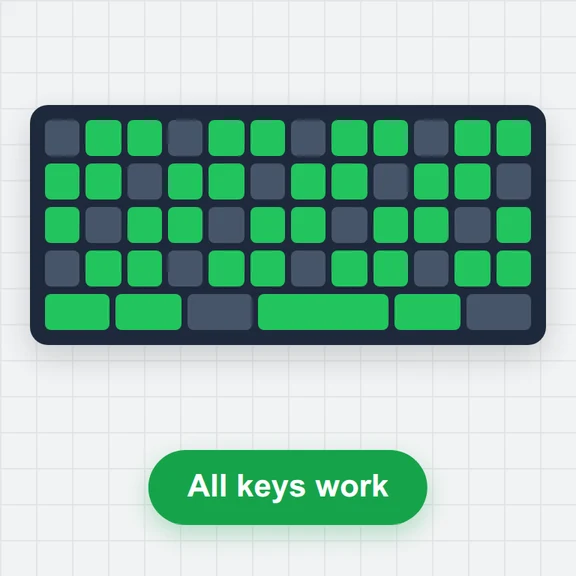 Keyboard TestFree online keyboard tester: see every key light up, find dead, stuck or double-pressing keys, check ghosting and rollover, and measure key repeat. ANSI, ISO, JIS, Mac.
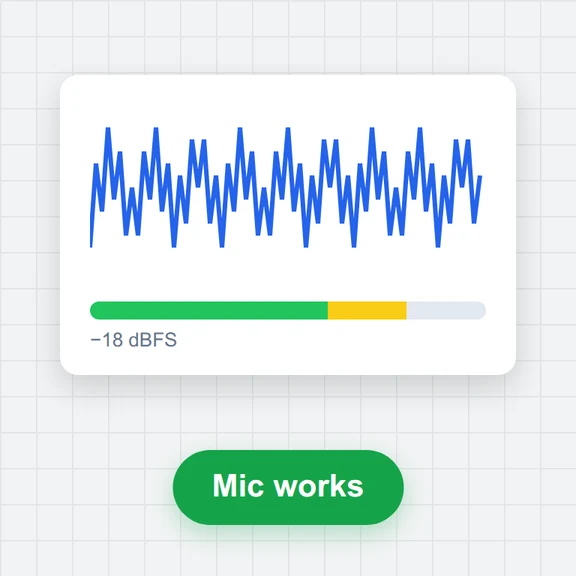 Mic TestFree online microphone test: live level in dB, waveform and spectrum, noise floor, clipping warning, and record a clip to hear yourself. Nothing is uploaded.
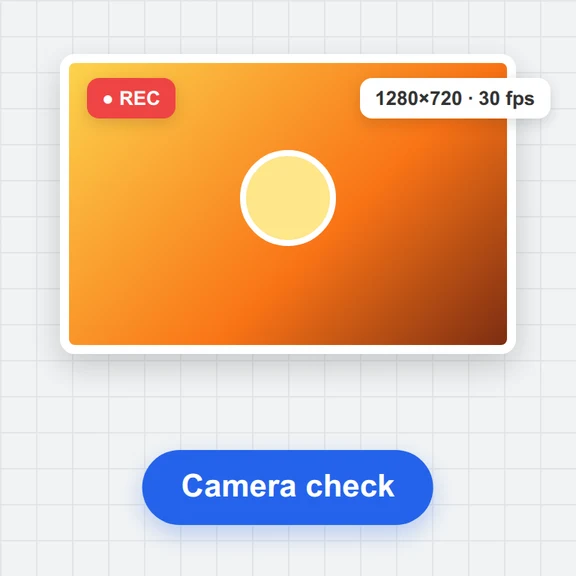 Webcam TestFree online webcam test: live preview, real resolution and frame rate, supported sizes up to 4K, light and colour readings, snapshot and short clip. Nothing is uploaded.
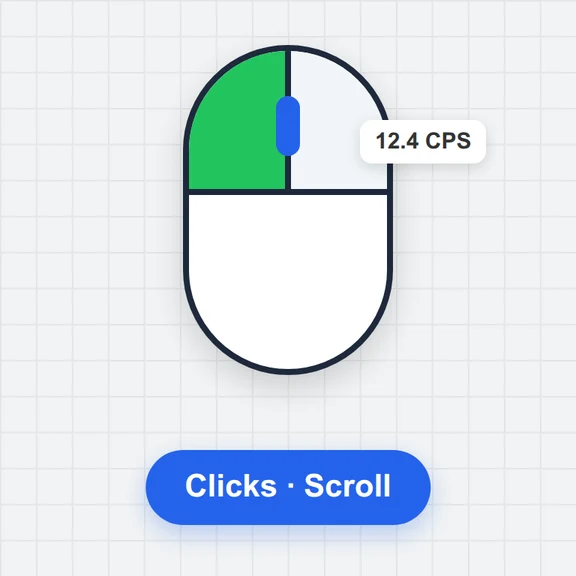 Mouse TestFree online mouse tester: check every button and the scroll wheel, catch unwanted double clicks, run a click speed (CPS) test and estimate your polling rate.
 Speaker TestFree online speaker and headphone test: left and right channels, stereo sweep, 20 Hz–20 kHz frequency sweep, tone generator, bass, polarity and balance, with a volume safety limit.